
yetidevworks/ytunnel
yetidevworks/ytunnel has 63 GitHub stars and 4 forks. Star changes are not measured yet. Last checked 2026-11-13 10:07 UTC. Last push 2026-11-13.
What you can do
- TUI Dashboard - Interactive interface to manage all your tunnels
- Live Metrics - Real-time request counts, error rates, and connection status
- Persistent tunnels - Tunnels run as background daemons (launchd on macOS, systemd on Linux)
- Automatic DNS management - Creates and updates CNAME records automatically
Gemessener Sternzuwachs
- in 24h
- Verlauf wird gesammelt
- in 7 days
- Verlauf wird gesammelt
- in 15 days
- Verlauf wird gesammelt
- in 1 month
- Verlauf wird gesammelt
Nettoänderungen in überlappenden Zeiträumen, keine Tagessummen. Fehlende Messwerte bleiben leer. Sterne zeigen Interesse, nicht Qualität.
Über uns
A TUI-first CLI for managing Cloudflare Tunnels with custom domains
EntwicklerwerkzeugeREADME.md
OriginalYTunnel
  ___ ___ _______                           __
 |   |   |_     _|.--.--.-----.-----.-----.|  |
  \     /  |   |  |  |  |     |     |  -__||  |
   |___|   |___|  |_____|__|__|__|__|_____||__|
   Cloudflare tunnels made easy!
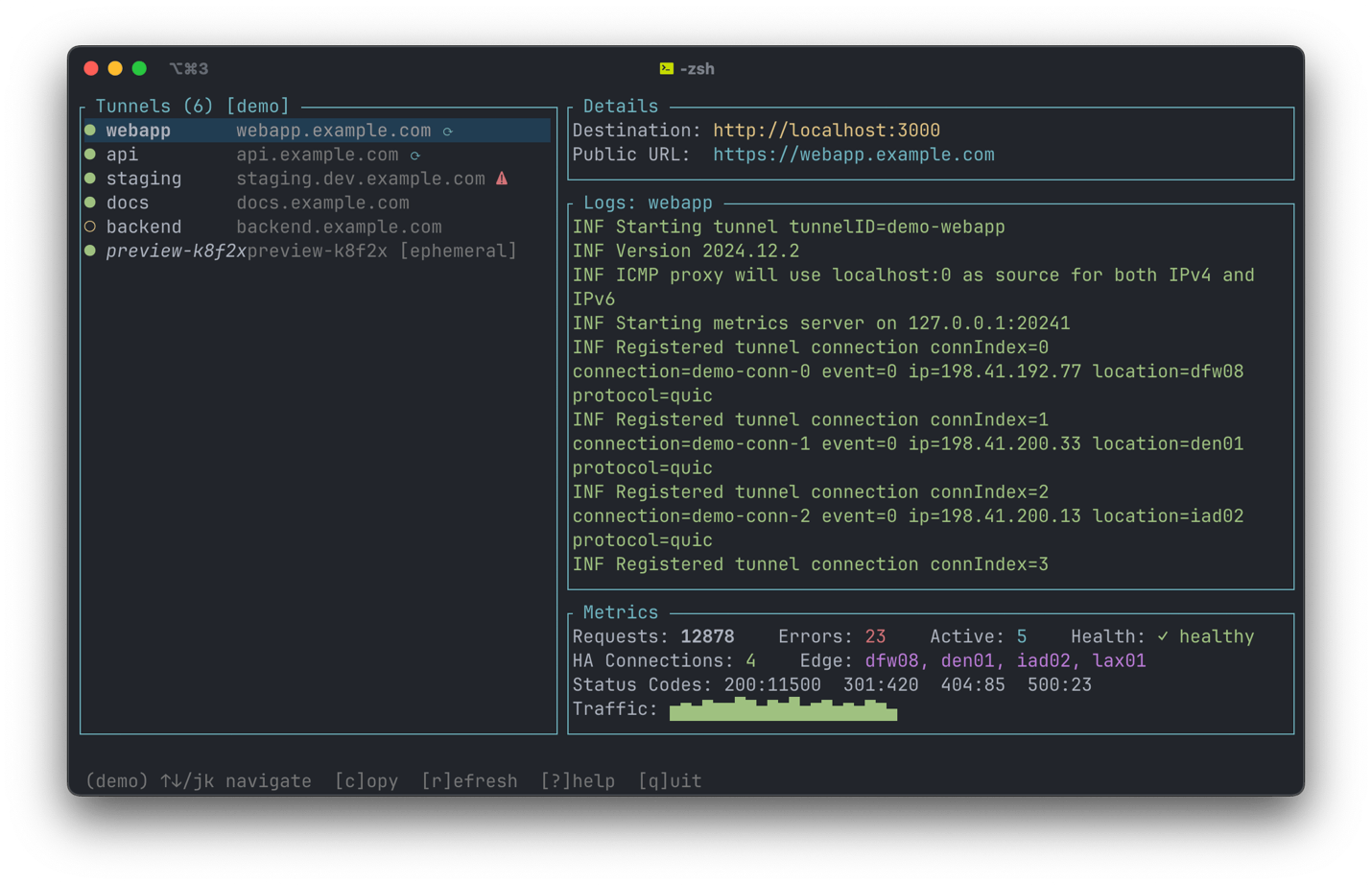
A TUI-first CLI for managing Cloudflare Tunnels with custom domains. Think ngrok, but using your own Cloudflare domain with persistent URLs and a dashboard to manage them.
Supported Platforms: macOS and Linux
Features
- TUI Dashboard - Interactive interface to manage all your tunnels
- Live Metrics - Real-time request counts, error rates, and connection status
- Persistent tunnels - Tunnels run as background daemons (launchd on macOS, systemd on Linux)
- Automatic DNS management - Creates and updates CNAME records automatically
- Multi-account support - Manage tunnels across multiple Cloudflare accounts
- Multi-zone support - Use different domains for different tunnels
- SSL/HTTPS - Automatic via Cloudflare
- Ephemeral mode - Quick one-off tunnels with automatic cleanup on exit
Prerequisites
cloudflared - Cloudflare's tunnel daemon
macOS:
brew install cloudflare/cloudflare/cloudflaredLinux (Debian/Ubuntu):
curl -L https://pkg.cloudflare.com/cloudflare-main.gpg | sudo tee /usr/share/keyrings/cloudflare-archive-keyring.gpg
echo "deb [signed-by=/usr/share/keyrings/cloudflare-archive-keyring.gpg] https://pkg.cloudflare.com/cloudflared $(lsb_release -cs) main" | sudo tee /etc/apt/sources.list.d/cloudflared.list
sudo apt update && sudo apt install cloudflared
Linux (other):
# Download the latest release from https://github.com/cloudflare/cloudflared/releases
sudo cp cloudflared /usr/local/bin/
sudo chmod +x /usr/local/bin/cloudflared
Note: You only need to install cloudflared. Do NOT run it as a system service. YTunnel manages cloudflared processes directly.
Cloudflare API Token with these permissions:
- Zone → Zone → Edit
- Zone → DNS → Edit
- Account → Cloudflare Tunnel → Edit
Create one at: https://dash.cloudflare.com/profile/api-tokens
A domain managed by Cloudflare (free tier works)
Installation
Homebrew (recommended)
brew install yetidevworks/ytunnel/ytunnel
From crates.io
cargo install ytunnel
From source
git clone https://github.com/yetidevworks/ytunnel
cd ytunnel
cargo install --path .
Pre-built binaries
Download from GitHub Releases.
Quick Start
# First-time setup
ytunnel init

# Open the TUI dashboard
ytunnel

# Or add a tunnel directly from CLI
ytunnel add myapp localhost:3000 --start
Architecture
How YTunnel Works
YTunnel is a management tool, not a daemon itself. Here's how the pieces fit together:
┌─────────────────────────────────────────────────────────────────┐
│                         ytunnel (CLI/TUI)                       │
│         Management tool - runs only when you invoke it          │
└─────────────────────────────────────────────────────────────────┘
                                  │
                    Creates & manages configs for
                                  │
                                  ▼
┌─────────────────────────────────────────────────────────────────┐
│              launchd (macOS) / systemd (Linux)                  │
│              System service manager - always running            │
│                                                                 │
│   macOS: ~/Library/LaunchAgents/com.ytunnel.<account>.<name>.plist │
│   Linux: ~/.config/systemd/user/ytunnel-<account>-<name>.service   │
└─────────────────────────────────────────────────────────────────┘
                                  │
                    Starts/stops/monitors
                                  │
                                  ▼
┌─────────────────────────────────────────────────────────────────┐
│                    cloudflared processes                        │
│            One process per tunnel - runs in background          │
│                                                                 │
│   • cloudflared tunnel --config myapp.yml run                   │
│   • cloudflared tunnel --config api.yml run                     │
└─────────────────────────────────────────────────────────────────┘
                                  │
                         Connects to
                                  │
                                  ▼
┌─────────────────────────────────────────────────────────────────┐
│                      Cloudflare Edge                            │
│                  Routes traffic to your tunnels                 │
└─────────────────────────────────────────────────────────────────┘
Persistence Model
| Mode | How it runs | Survives reboot? | Use case |
|---|---|---|---|
Ephemeral (ytunnel run) |
Foreground process | No | Quick testing, one-off tunnels |
Persistent (ytunnel add --start) |
launchd/systemd | Yes* | Production, always-on services |
*Tunnels don't auto-start by default. They start when you run ytunnel start and keep running until you ytunnel stop or reboot. To auto-start on login, press A in the TUI to toggle auto-start (⟳ indicator shows when enabled).
What YTunnel Creates
When you run ytunnel add myapp localhost:3000 --start:
- Cloudflare Tunnel - Created via API, persists in your Cloudflare account
- DNS Record - CNAME pointing
myapp.yourdomain.com→ tunnel - Credentials - Tunnel credentials JSON file
- Config - cloudflared YAML config file
- Service - launchd plist (macOS) or systemd unit (Linux)
- State - Entry in
tunnels.toml
The service file tells launchd/systemd to run cloudflared with your config. Logs go to the logs directory.
TUI Dashboard
Run ytunnel with no arguments to open the interactive dashboard:
┌─ Tunnels (3) ─────────────────────┬─ Logs: myapp ─────────────────────────────────┐
│ ● myapp       myapp.example.com   │ 2024-01-20 10:30:15 INF Starting tunnel       │
│ ● api         api.example.com     │ 2024-01-20 10:30:16 INF Connection registered │
│ ○ staging     staging.example.com │ 2024-01-20 10:30:17 INF Tunnel connected      │
│                                   │ 2024-01-20 10:30:18 INF Route propagated      │
│                                   │ 2024-01-20 10:30:21 INF Request served GET /  │
│                                   ├─ Metrics ─────────────────────────────────────┤
│                                   │ Requests: 1,247  Errors: 3  Active: 2         │
│                                   │ Health: ✓ healthy                             │
│                                   │ HA Connections: 4    Edge: dfw08, den01       │
│                                   │ Status Codes: 200:1198  304:42  404:3  500:4  │
│                                   │ Traffic: ▁▂▃▅▆▄▃▂▁▂▃▄▅▆▇█▆▅▄▃▂▁▂▃▄▅▆▇         │
├───────────────────────────────────┴───────────────────────────────────────────────┤
│ Started myapp                                                                     │
│ [a]dd [s]tart [S]top [R]estart [c]opy [o]pen [h]ealth [d]elete [r]efresh [q]uit   │
└───────────────────────────────────────────────────────────────────────────────────┘
Status indicators:
●Running (green)○Stopped (yellow)✗Error (red)⟳Auto-start enabled (cyan, shown after hostname)
Keyboard shortcuts:
| Key | Action |
|---|---|
a |
Add a new tunnel |
s |
Start selected tunnel |
S |
Stop selected tunnel |
R |
Restart tunnel (updates daemon config) |
c |
Copy tunnel URL to clipboard |
o |
Open tunnel URL in browser |
h |
Check tunnel health |
A |
Toggle auto-start on login (⟳ = enabled) |
d |
Delete selected tunnel |
m |
Import ephemeral tunnel as managed |
; |
Cycle through accounts (when multiple configured) |
r |
Refresh status |
↑/↓ or j/k |
Navigate list (scroll logs when the log pane has focus) |
Tab |
Switch focus between the tunnel list and the log pane |
| Click | Focus a pane, or select a tunnel; the mouse wheel scrolls the pane under the pointer |
PgUp/PgDn |
Scroll logs a page |
Ctrl+U/Ctrl+D |
Scroll logs half a page |
Home/End |
Jump to the oldest / newest log line (End resumes following) |
q |
Quit |
To select text in the TUI, hold Shift while dragging (Option in Terminal.app), since plain clicks go to ytunnel.
Tunnels continue running in the background after you close the TUI.
Metrics Panel
For running tunnels, the TUI displays live metrics from cloudflared's Prometheus endpoint:
- Requests - Total requests handled by the tunnel
- Errors - Number of failed requests (red if > 0)
- Active - Currently in-flight concurrent requests
- Health - Whether the tunnel URL is reachable (✓ healthy / ✗ unreachable)
- HA Connections - Number of connections to Cloudflare edge (4 = healthy)
- Edge - Cloudflare edge locations (e.g.,
dfw08= Dallas) - Status Codes - Breakdown of HTTP response codes
- Traffic - Sparkline showing request rate over time
Metrics auto-refresh every 5 seconds. Health checks run every 30 seconds, and h runs one immediately. A tunnel is only marked unreachable (and a notification sent) after 3 failed checks in a row, so a brief network drop doesn't produce a down/up pair. A failed check doesn't count while that tunnel's cloudflared is reconnecting to Cloudflare (it had fewer than its usual 4 edge connections at some point in the last minute), since it's already fixing the problem itself; a tunnel that keeps failing for 5 minutes is reported down regardless. When more than half the tunnels get no response at all in the same check, ytunnel reports this machine as offline instead of marking tunnels down, and sends one notification if it lasts through 3 checks.
Every check is written to health.log in the ytunnel config folder (next to tunnels.toml; ~/Library/Application Support/ytunnel/ on macOS), one line per tunnel with the result, cloudflared's connection count before and after the probe, and whether a failure counted. Timestamps are UTC, matching the tunnel logs. The file rotates to health.log.1 at 1 MB.
Notifications
When a tunnel goes down or comes back up, ytunnel sends a system notification. This helps you catch issues even when the TUI isn't visible.
- macOS: Uses
terminal-notifier(if installed) orosascript - Linux: Uses
notify-send(requireslibnotify)
Ephemeral Tunnels
Ephemeral tunnels (created with ytunnel run) also appear in the TUI marked as [ephemeral]. You can:
- View them alongside managed tunnels
- Delete them from Cloudflare
- Import them as managed tunnels (press
m) to add daemon control
Tunnels ytunnel Didn't Create
Any other tunnel on your Cloudflare account shows up marked [not managed by ytunnel], in both ytunnel list and the TUI. This covers tunnels you made in the Cloudflare dashboard or by hand with cloudflared, including ones whose cloudflared runs on a completely different machine.
These are read-only. ytunnel has no local config, credentials, or daemon for them, so it can't start, stop, edit, import, or delete them. The status shown comes from Cloudflare (healthy / degraded / down / inactive), not from this machine, and the destination and hostname read as unknown because that config lives wherever cloudflared is actually running.
Note: ytunnel manages
cloudflaredprocesses on the machine it runs on. It is not a remote control for acloudflaredrunning elsewhere. Tunnels on other machines are listed so you can see them, nothing more.
CLI Commands
Persistent Tunnels
# Add a tunnel (doesn't start it)
ytunnel add myapp localhost:3000

# Add and start immediately
ytunnel add myapp localhost:3000 --start

# Use a specific zone
ytunnel add api localhost:8080 -z dev.example.com

# Start/stop/restart tunnels
ytunnel start myapp
ytunnel stop myapp
ytunnel restart myapp    # Stop, update config, start

# View logs
ytunnel logs myapp           # Last 50 lines
ytunnel logs myapp -n 100    # Last 100 lines
ytunnel logs myapp -f        # Follow (like tail -f)

# List all tunnels with status
ytunnel list

# Delete a tunnel
ytunnel delete myapp

# Reset all configuration (start fresh)
ytunnel reset
ytunnel reset -y  # Skip confirmation
Ephemeral Tunnels
For quick one-off tunnels that stop when you press Ctrl+C:
# Auto-generated subdomain (ytunnel-abc123.example.com)
ytunnel run localhost:3000

# Named subdomain (myapp.example.com)
ytunnel run myapp localhost:3000

# Different zone
ytunnel run api -z dev.example.com localhost:8080
Account Management
# Add a new account (interactive)
ytunnel init

# List all configured accounts
ytunnel account list

# Set the default account
ytunnel account select production
# or
ytunnel account default production

# Remove an account
ytunnel account remove old-account

# Use a specific account for any command
ytunnel add myapp localhost:3000 --account production
ytunnel list --account dev
Zone Management
# List available zones
ytunnel zones

# Change default zone
ytunnel zones default dev.example.com
Maintenance
# Report leftovers on the selected account
ytunnel doctor

# Check every configured account
ytunnel doctor --all

# Delete what it finds (prompts first)
ytunnel doctor --fix

# Skip the prompt
ytunnel doctor --fix --yes
doctor looks for two things:
- Orphaned DNS records - CNAMEs still pointing at
<tunnel-id>.cfargotunnel.comfor a tunnel that no longer exists. These resolve to nothing. They're usually left over from aytunnel runthat was killed rather than stopped cleanly, or from an older ytunnel that didn't clean up DNS on delete - Stale local state - tunnels in
tunnels.tomlwhose Cloudflare tunnel has been deleted elsewhere
Nothing is removed without --fix, and --fix prompts before deleting unless you pass --yes.
Configuration
File Locations
macOS:
| Path | Purpose |
|---|---|
~/Library/Application Support/ytunnel/config.toml |
API credentials and zones |
~/Library/Application Support/ytunnel/tunnels.toml |
Persistent tunnel state |
~/Library/Application Support/ytunnel/<tunnel-id>.json |
Cloudflare tunnel credentials |
~/Library/Application Support/ytunnel/tunnel-configs/<name>.yml |
cloudflared config files |
~/Library/Application Support/ytunnel/logs/<name>.log |
Tunnel daemon logs |
~/Library/LaunchAgents/com.ytunnel.<account>.<name>.plist |
launchd service files |
Linux:
| Path | Purpose |
|---|---|
~/.config/ytunnel/config.toml |
API credentials and zones |
~/.config/ytunnel/tunnels.toml |
Persistent tunnel state |
~/.config/ytunnel/<tunnel-id>.json |
Cloudflare tunnel credentials |
~/.config/ytunnel/tunnel-configs/<name>.yml |
cloudflared config files |
~/.config/ytunnel/logs/<name>.log |
Tunnel daemon logs |
~/.config/systemd/user/ytunnel-<account>-<name>.service |
systemd service files |
Main Config
Config file location: ~/Library/Application Support/ytunnel/config.toml (macOS) or ~/.config/ytunnel/config.toml (Linux):
selected_account = "dev"

[[accounts]]
name = "dev"
api_token = "your-token"
account_id = "your-account-id"
default_zone_id = "zone-id"
default_zone_name = "example.com"

[[accounts.zones]]
id = "zone-id"
name = "example.com"

[[accounts]]
name = "production"
api_token = "another-token"
account_id = "another-account-id"
default_zone_id = "prod-zone-id"
default_zone_name = "mysite.io"

[[accounts.zones]]
id = "prod-zone-id"
name = "mysite.io"
Tunnel State
tunnels.toml (same directory as config.toml):
[[tunnels]]
name = "myapp"
account_name = "dev"
target = "localhost:3000"
zone_id = "abc123"
zone_name = "example.com"
hostname = "myapp.example.com"
tunnel_id = "cf-tunnel-id"
enabled = true
auto_start = false  # Set to true to start on login
Troubleshooting
Check tunnel status
# Via ytunnel
ytunnel list

# Via system service manager
launchctl list | grep ytunnel          # macOS
systemctl --user list-units 'ytunnel-*' # Linux
View logs
# In TUI: select tunnel and view right pane

# Or directly
tail -f ~/Library/Application\ Support/ytunnel/logs/myapp.log  # macOS
tail -f ~/.config/ytunnel/logs/myapp.log                       # Linux
Tunnel won't start
- Check if cloudflared is installed:
cloudflared --version - Check the log file for errors
- Verify credentials exist in the config directory
- Try running manually:
cloudflared tunnel --config <config-path> run
Manually manage a tunnel
macOS:
# Stop (replace <account> with your account name, e.g., "dev")
launchctl unload ~/Library/LaunchAgents/com.ytunnel.<account>.myapp.plist

# Start
launchctl load ~/Library/LaunchAgents/com.ytunnel.<account>.myapp.plist

# Remove completely
launchctl unload ~/Library/LaunchAgents/com.ytunnel.<account>.myapp.plist
rm ~/Library/LaunchAgents/com.ytunnel.<account>.myapp.plist
Linux:
# Stop (replace <account> with your account name, e.g., "dev")
systemctl --user stop ytunnel-<account>-myapp.service

# Start
systemctl --user start ytunnel-<account>-myapp.service

# Remove completely
systemctl --user stop ytunnel-<account>-myapp.service
systemctl --user disable ytunnel-<account>-myapp.service
rm ~/.config/systemd/user/ytunnel-<account>-myapp.service
systemctl --user daemon-reload
License
MIT
Ähnliche Projekte entdecken
codecrafters-io/build-your-own-x
Meistere das Programmieren, indem du deine Lieblingstechnologien von Grund auf neu erschaffst.
562,286 Sternepublic-apis/public-apis
Eine gemeinschaftliche Liste kostenloser APIs
498,702 Sternemorluto/rea
Mit Agenten alles per Reverse Engineering untersuchen, vom Verhalten der Anwendung bis hin zu nativen Binärdateien.
456,965 Sterneopenclaw/openclaw
Die KI, die wirklich Dinge erledigt. Jedes Betriebssystem, jede Plattform. Auf die Hummer-Art. 🦞
394,447 Sterne