
wuwangzhang1216/ora has 64 GitHub stars and 5 forks. Star changes are not measured yet. Last checked 2026-11-14 12:54 UTC. Last push 2026-11-07.
Gemessener Sternzuwachs
- in 24h
- Verlauf wird gesammelt
- in 7 days
- Verlauf wird gesammelt
- in 15 days
- Verlauf wird gesammelt
- in 1 month
- Verlauf wird gesammelt
Nettoänderungen in überlappenden Zeiträumen, keine Tagessummen. Fehlende Messwerte bleiben leer. Sterne zeigen Interesse, nicht Qualität.
Über uns
Real-time on-device speech translation for macOS. Silero VAD + Qwen3-ASR-1.7B + Qwen3.5 (MLX) on Apple Silicon. No cloud, no API keys, no telemetry.
SicherheitREADME.md
Original
Live captions for meetings, videos, and conversations.
Local by default, with optional RealRouter speech recognition and translation.


What is Ora?
Ora listens to your microphone and streams live translations of what you say into a floating caption window, using on-device MLX models for both speech recognition and translation. It's designed as a small, focused menu-bar app — click once, talk, read.
- 🎙 Native real-time: on-device voice activity detection, speech recognition, and translation, all on the Metal GPU
- 🔒 Local by default: offline recognition and translation after the one-time model download, no API keys or telemetry; optional RealRouter can send audio and recognized text upstream
- ⚡️ Live captions: source text updates while you speak; revisable translation previews continue before sentence boundaries
- 🪟 Minimal UI: menu bar icon + a single floating caption card, configurable-shortcut driven
- 🌍 Multilingual: translate between Chinese, English, Japanese, Korean, French, German, Spanish, and more
- 🎚 Tunable: preferences for target language, quality tier, global hotkey, VAD sensitivity, end-of-speech window
Screenshots
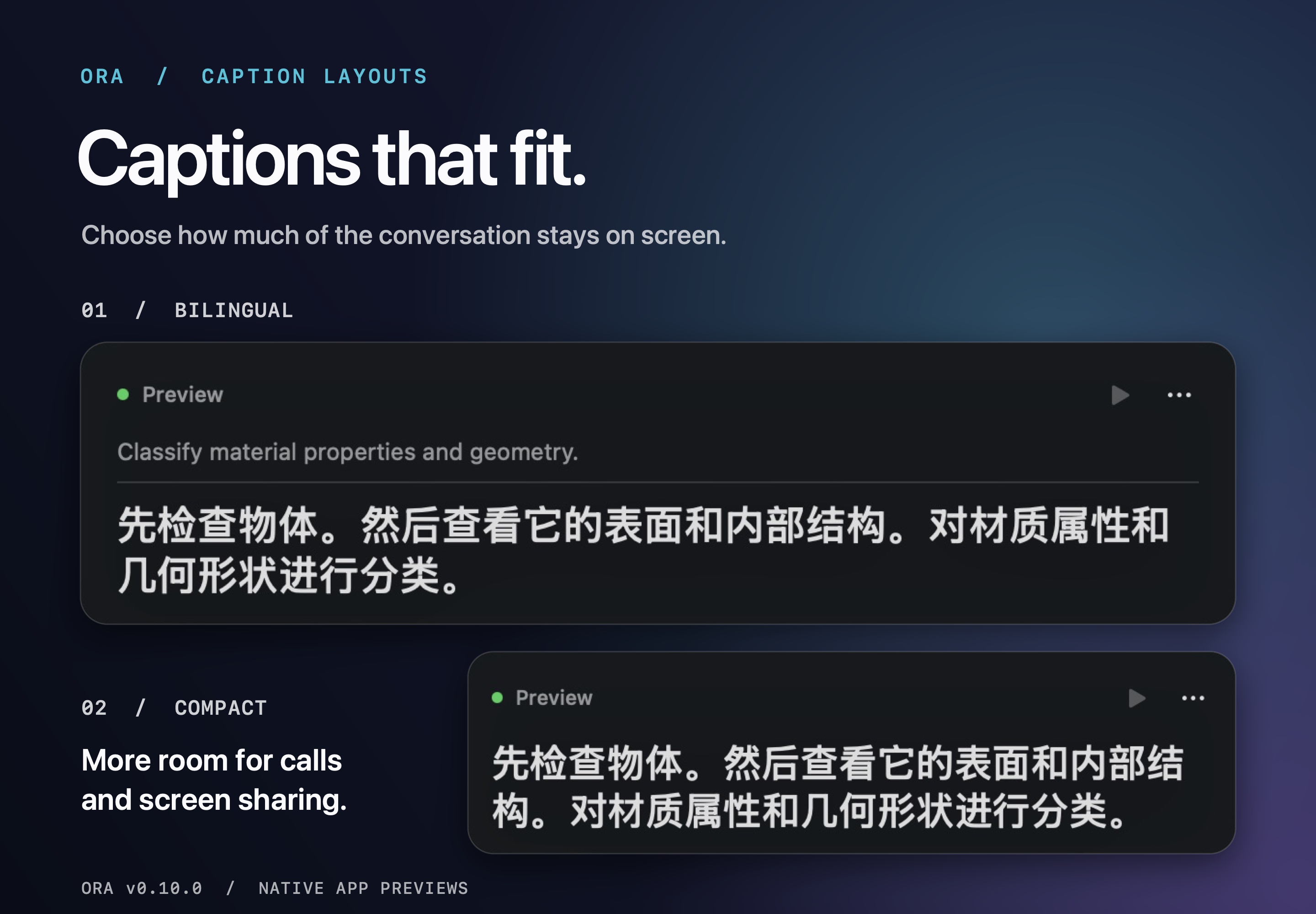
View the original macOS screenshots
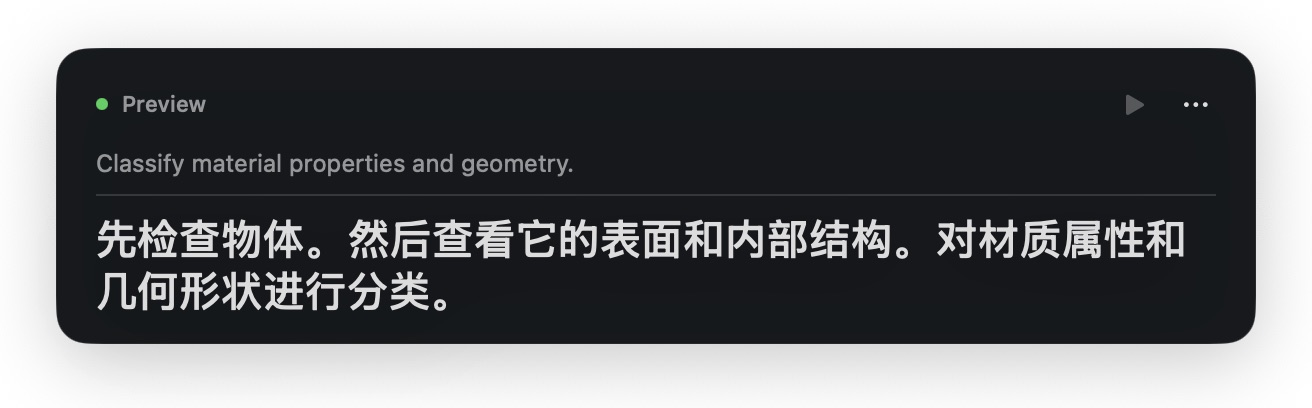
Bilingual
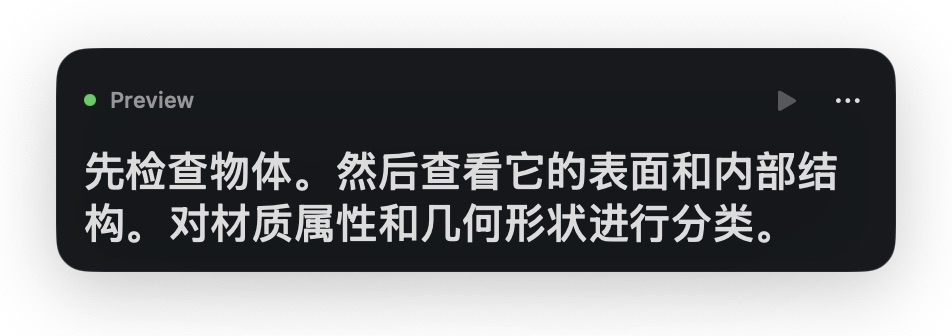
Compact
Download
Grab Ora.dmg from the latest release, double-click to mount, and drag Ora.app to Applications.
Release packages are signed with a Developer ID. Check each release's notes for its notarization status. Older packages, including v0.8.0, were released without notarization and may trigger a macOS first-launch warning.
- Requires macOS 15 (Sequoia) or later and an Apple Silicon Mac (M1/M2/M3/M4)
- Model weights download on first launch; download size depends on the selected quality tier
- First launch prompts for microphone access — required for speech capture
What's new in 0.10.0
- Stream readable translations during speech and refine provisional wording as more context arrives.
- Keep the live overlay on the latest two lines, with complete utterances in history.
- Use play/pause directly on the caption window and find secondary actions under More.
- Opt into RealRouter for translation or both recognition and translation, with API keys stored in Keychain.
- Try experimental on-device English streaming recognition with Nemotron or Apple SpeechAnalyzer (macOS 26+).
What's new in 0.9.0
- New Meeting (System + Microphone) input captures both sides of a Zoom call into the same captions and transcript history
- Align system and microphone audio by capture timestamps, with bounded mixing buffers and a short jitter allowance
- Convert each input's native audio format separately, including 44.1 kHz microphones and 48 kHz system audio
- Show microphone permission and capture startup/interruption errors without silently falling back to one-sided capture
- Keep transcript source metadata tied to the input selected when the session starts
- Preserve existing Microphone and System Audio preferences; select Meeting explicitly to enable both inputs
Use headphones to reduce acoustic echo. Meeting mode mixes the inputs without identifying speakers or cancelling echo; simultaneous speech may reduce recognition accuracy. Ora captures the microphone independently of Zoom's mute button and saves text transcripts rather than audio recordings.
What's new in 0.8.0
- Stream recognized speech immediately and translate token by token, entirely on device
- Paginate captions at sentence, clause, and measured reading-length boundaries without clipping unread text
- Keep already-read captions in order when recognition or translation revises earlier wording
- Keep English visible while Chinese continues paging, and preserve the translation while longer source text finishes
- Reduce display waits when another segment is queued; the default Meeting preset now finalizes after about 300 ms of silence
- Share recent committed context between live and final translations, and prevent prompt labels such as “Source:” from appearing in subtitles
- Clear captions at session start/end, save recognized unfinished speech, and show the session duration after local history writes succeed
- Add deterministic caption regressions and real-model replay tests covering more than two minutes of continuous operation
What's new in 0.6.2
- Fixed a freeze during long listening sessions where captions stopped updating and old translations repeated — the audio/VAD pipeline could fall ever further behind real time when ASR + translation were slower than incoming speech
- Audio and VAD-event buffers are now bounded, so the pipeline sheds the oldest backlog instead of accumulating it without limit (applies to both the macOS app and the Python reference CLI)
What's new in 0.6.1
- Experimental Rapid-MLX backend for lower-latency local translation in the macOS app
- Preferences toggle for MLX Swift vs Rapid-MLX, with configurable local server URL and model name
- Rapid-MLX benchmark tooling and documented setup for the Python reference CLI
What's new in 0.6.0
- New Transcript History window for browsing past sessions inside Ora
- Search, copy, refresh, and export transcript sessions without opening JSONL files manually
- Preferences reorganized into General, Captions, Advanced, and History tabs
- Faster access to transcript history from the menu bar and caption hover controls
What's new in 0.5.1
- Configurable macOS Start / Stop Listening hotkey in Preferences
- New default global shortcut: ⌥Space, avoiding Chrome / Brave's reopen-closed-tab shortcut
- Legacy ⌘⇧T remains available as an opt-in shortcut
What's new in 0.5.0
- Native macOS caption layouts: Bilingual, Translation Only, and Compact
- Room-aware VAD presets: Quiet Room, Meeting, Noisy Room, and Custom
- Faster daily workflow controls: copy current / last translation and export transcript history
- CLI setup upgrades: preflight checks, microphone selection, demo mode, room presets, and Markdown / TXT / JSONL / SRT session export
Usage
- Click the echo-ring icon in the menu bar.
- Choose Start Listening (or press ⌥Space from anywhere).
- Speak. The floating caption window appears automatically.
- Use the always-visible play/pause button. The More menu contains source display, preferences, history, copy, export, and hide.
- Press ⌘, for Preferences — change target language, quality tier, global hotkey, caption layout, VAD room preset, and caption size.
Keyboard shortcuts
| Shortcut | Action |
|---|---|
| ⌥Space | Start / stop listening (global, configurable in Preferences) |
| ⌘⇧H | Show / hide caption window |
| ⌘, | Preferences |
| ⌘Q | Quit Ora |
macOS UX controls
The native macOS app includes the same daily-use tuning as the reference CLI:
- Caption layout: Bilingual, Translation Only, or Compact for screen sharing
- Configurable hotkey: change Start / Stop Listening from the default ⌥Space, including a legacy ⌘⇧T option
- Room presets: Quiet Room, Meeting, Noisy Room, or Custom VAD settings
- Fast copy: copy the current or last translation from the menu bar, or from the caption card’s More menu
- Transcript history: export the current session or all history as TXT, SRT, JSON, or Markdown
Live captions for meetings
For both sides of a Zoom meeting, select Preferences → General → Audio Input → Meeting (System + Microphone), then start listening. Ora captures other participants through system audio and your voice through the default macOS microphone, aligns the two streams in time, and transcribes/translates them into the same caption window and transcript history. Allow both microphone and Screen & System Audio Recording access when macOS asks. Select the same microphone in macOS Sound settings and Zoom. Ora captures the microphone independently of Zoom's mute button; stop listening in Ora when you want it to stop capturing your voice.
Use headphones in Meeting mode: speaker output can enter the microphone and cause duplicate or echoing speech. This mode mixes the inputs; it does not identify speakers, cancel acoustic echo, or guarantee recognition of simultaneous speakers. System audio includes other apps, so mute unrelated media/notifications during a meeting. Ora saves text transcripts, not audio recordings. Input changes take effect at the next Start Listening.
System Audio still captures only the computer's playback, and Microphone only your microphone. Existing input preferences are preserved.
During speech, Ora displays recognized source text immediately. Audio slices, translation utterances, and display pages have independent boundaries. Short VAD pauses are held for another 250–450 ms; recognized unfinished thoughts can wait up to 2400 ms. A continuation keeps the same utterance and is re-recognized together with the preceding audio. Conservative text rules avoid treating fragments such as “I don't think…” as complete thoughts. A bounded hold and a separate semantic audio threshold prevent indefinite waiting. The 2-second processing slice does not force a sentence boundary or restart VAD. After about 8 seconds, joined speech can retire an earlier complete sentence confirmed by a later recognition snapshot, provided it does not rewind text already published. A 45-second fallback remains when no safe boundary exists. It carries one second of audio overlap into the next utterance to protect boundary words. Only that deliberately overlapped audio is deduplicated. This is a heuristic endpoint policy, not a trained grammatical-completeness model. Saved VAD preferences still control acoustic slicing.
Live translations use agreement between consecutive recognition snapshots. A substantial unfinished tail can be previewed without waiting for punctuation, including Chinese text without spaces. Small source additions are coalesced and provisional requests are rate-limited, while completed sentences bypass that limit. Readable generated text appears during the response, with brief token coalescing instead of an artificial typing animation. A corrected sentence boundary can retranslate the whole current sentence without appending its old translation. Comma-delimited clauses remain revisable until their full sentence is available. Only completed, confirmed sentences become reusable checkpoints and translation context; provisional output cannot block retirement of older audio windows. In-flight token previews are display-only and are removed if the response fails; Stop cannot save those truncated tokens as a translation. An exact completed translation can be reused when final recognition agrees. Finalization also reuses recognition of the exact same audio buffer instead of running ASR over it a second time. Stable continuations use available space on the current two-line caption. The live overlay follows the newest ready translation instead of waiting for older captions to finish their reading timers. Recognized source words stay visible while the next translation is pending. Recognition and translation inference remain serial on the shared GPU; a slow model request can still postpone the next recognition pass. If the final source only appends to confirmed sentences, their translations are retained and only the remainder is translated. Finalization updates unread text without replaying sentences the viewer has already read. History keeps the final source and translation.
An experimental Local (Nemotron Streaming · English) recognition option uses Nemotron 3.5 CoreML on the CPU/Neural Engine with persistent streaming state. The first run downloads about 612 MB; this trial fixes the input hint to English. Choose Qwen for other input languages. The 320 ms model chunk is not an end-to-end caption latency claim. Translation still uses the selected LLM backend. Confirmed recognition can trigger translation without a second ASR pass, and the current unpunctuated tail can be previewed and revised before commit; previews never become permanent translation context. On macOS 26+, Local (Apple Streaming · English) provides a second experimental on-device option through SpeechAnalyzer, using system-managed English assets and revisable transcription results. Both streaming options remain opt-in; neither is assumed faster from its model's advertised chunk size.
The live caption window shows the latest two measured lines. When speech outpaces reading, older on-screen text gives way to current speech; the complete recognized and translated text remains in transcript history. Late corrections from older utterances cannot pull the live window backwards. Shorter corrected translations also replace the current snapshot. This favors staying with the speaker over leaving every earlier caption on screen for a fixed reading allowance. Starting or ending a session clears the caption display and its unread pages. Ending saves completed transcripts and the latest recognized unfinished utterance locally, then shows the session duration and a Session saved receipt only after disk writes succeed. Empty sessions are labeled as having no recognized speech; write failures remain available in memory for export through History. Each Start creates a separate history session. Caption read positions only move forward: revised wording is aligned with the current read boundary and updates unread text, without replaying old pages. The full corrected original and translation remain available in transcript history. Both live and final translations use the same rolling context of up to four recent committed exchanges (oversized exchanges are excluded), keeping pronouns and terminology consistent. When one language finishes paging earlier, its last page stays visible alongside the remaining pages of the same utterance. Held text is never consumed twice or carried into a different utterance. Final transcript history still stores whole utterances, independently of display pages.
For a local presentation-only preview without recording or loading models:
cd macos/Ora
./run.sh --caption-layout-preview
# Reproduce unequal English/Chinese page counts:
./run.sh --caption-bilingual-preview
The recognizer still processes rolling audio snapshots, rather than decoding every spoken word in isolation. Update speed depends on your Mac and the selected model; translation can revise wording as more context arrives. These changes run locally with the existing models and require no cloud service.
Quality tiers
| Tier | Download | Best for |
|---|---|---|
| Standard (default) | ~1.2 GB | Casual conversation, news, video |
| High | ~3 GB | Nuanced content, technical terms |
| Extra High | ~6 GB | Literary content, specialized terminology |
Switch at any time from the menu bar → Quality. Higher tiers are more accurate but slower and use more memory; the weights download automatically on first use.
Experimental Rapid-MLX backend
Ora's macOS app defaults to in-process MLX Swift translation. For latency experiments, Preferences → General → LLM Backend can switch the app to a local Rapid-MLX server.
uv pip install --python .venv/bin/python rapid-mlx
.venv/bin/rapid-mlx serve qwen3.5-4b \
  --served-model-name default \
  --host 127.0.0.1 \
  --port 8000 \
  --no-thinking \
  --pin-system-prompt \
  --stream-interval 1
Then choose Rapid-MLX in Preferences, keep the URL as http://127.0.0.1:8000/v1, and click Reconnect Translator. This is opt-in; packaged releases still work offline with MLX Swift and do not manage the Rapid-MLX process.
Optional RealRouter speech recognition and translation
In Preferences → General → Translation, select RealRouter API for both Speech Recognition and LLM Backend to use the full API pipeline. Keep Speech Recognition on Local (Qwen ASR) for local recognition with API translation. Existing settings are preserved; recognition stays local until you select the API.
Set the server URL to http://127.0.0.1:8789 (with or without /v1), enter a
translation model supported by your server, and enter your existing RealRouter
API key. Save & Test APIs stores the key in macOS Keychain, stops any listening
session, and uses a synthetic English sentence to test the selected APIs. It
reports speech recognition time, translated first-text time, and translation
duration without recording your microphone or uploading transcript history.
No Codex sign-in is needed in Ora.
The default translation model field is gpt-6-luna; availability and reasoning
levels are checked against your server's /v1/models. The recognition request
uses the compatibility label whisper-1, but the actual speech model is chosen
by RealRouter's upstream service. Use Advanced → Source Language Hint →
Auto-detect for mixed-language meetings, or supply a language hint if needed.
With API speech recognition, Ora encodes microphone/meeting audio as in-memory
16 kHz mono PCM WAV and uploads it to /v1/audio/transcriptions. Since this is
an utterance/file endpoint, provisional recognition uses growing snapshots with
at least one second of audio and one second of growth, no more often than every
1.5 seconds within an utterance. The pipeline coalesces updates, cancels stale
requests, and always transcribes the full finalized utterance. Recognition is
not word-by-word streaming and the server supplies no word timestamps.
With API translation, recognized text and up to four recent committed translation
exchanges are sent to /v1/responses. In full API mode, Ora loads only its small
local voice-activity detector; local ASR and translator models are not loaded.
Capture, audio mixing, caption presentation, and transcript history remain local.
An HTTP localhost URL does not make the upstream inference local.
Changing recognition backends or switching to API translation stops the current session; click Start Listening again to opt into the new path. An API final recognition failure also stops capture and displays the error, preserving text already recognized in that session. Failed audio is not saved to disk for replay. There is no silent provider fallback. API usage, connectivity, and server limits apply; speed and quality need comparison with your actual upstream models and network. Failed or truncated API translations are not saved as completed history.
HTTP is accepted only on loopback; remote servers require HTTPS. Bearer keys are not stored in preferences or transcript logs, and HTTP redirects are rejected.
How it works
┌──────────┐    ┌───────────┐    ┌──────────────┐    ┌────────────────┐
│  Mic     │───▶│   VAD     │───▶│     ASR      │───▶│  Translator    │
│          │    │ endpoint  │    │ on-device    │    │   on-device    │
│          │    │ detection │    │  Metal GPU   │    │   Metal GPU    │
└──────────┘    └───────────┘    └──────────────┘    └────────────────┘
     │                                                        │
     └── AVAudioEngine ──────────────────────▶ SwiftUI Caption Card
Four stages run entirely on the Metal GPU via MLX Swift — no Python, no Ollama, no external server. Partial results stream back to the caption card while you're still speaking; the final translation is committed once a short silence is detected.
The native Swift source for the Ora macOS app lives in
macos/Ora. The Python reference implementation below mirrors the same architecture with open dependencies for fast experimentation and terminal-first testing.
Python CLI (open-source reference implementation)
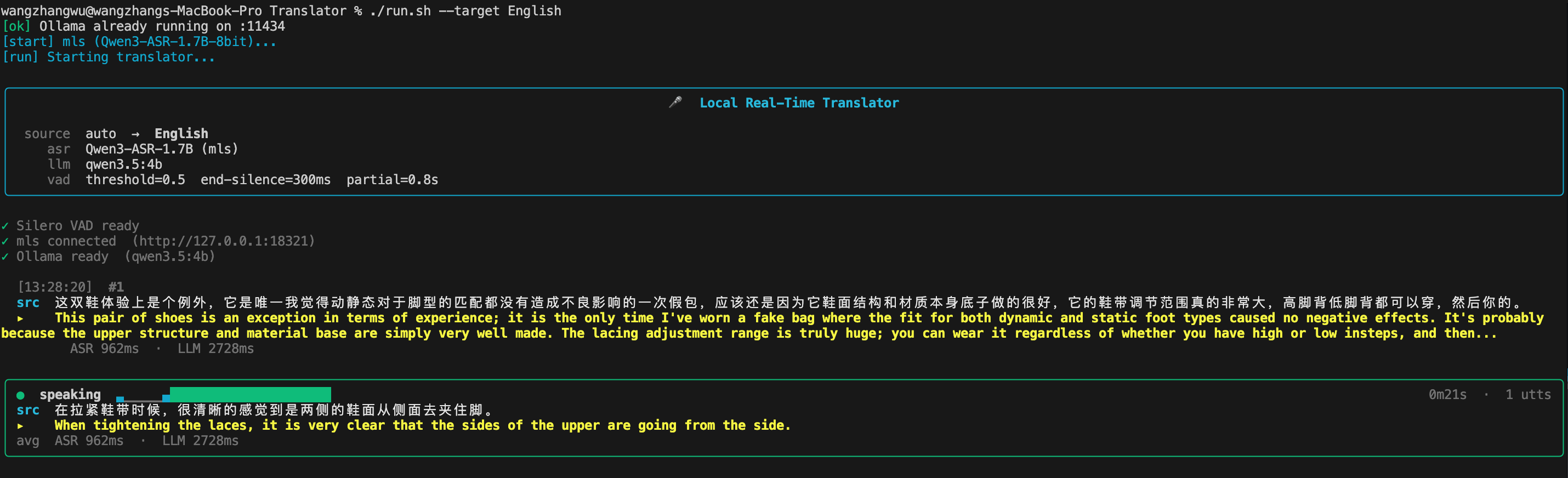
Live rich-terminal UI — status bar, per-utterance source + translation, scrolling history, and a real-time VAD probability meter.
A Python implementation lives in main.py — the same architecture as the Ora macOS app, built on top of mls (an MLX model serving daemon) for ASR and a local LLM server for translation. Ollama remains the default backend; Rapid-MLX is available as an experimental low-latency backend. It's useful for:
- Running on macOS versions that don't meet the Ora app's 15.0 requirement
- Reading / forking a fully open-source implementation of the same pipeline
- Iterating on prompts or VAD settings without rebuilding anything
- Watching a live VAD-level meter in a rich terminal UI
The CLI mirrors the Ora app's endpointing and partial-commit cadence, and exposes the same Standard / High / Extra High quality tiers via --quality.
# One-shot install (creates .venv, pulls translator models, clones the ASR server, preloads weights)
./setup.sh

# Start ASR + translator server + CLI
./run.sh --target English --asr-lang zh

# Bump translation quality
./run.sh --quality high
./run.sh --quality extra-high
Rapid-MLX backend experiment
The CLI can also talk to a local Rapid-MLX OpenAI-compatible server. This keeps translation local while lowering LLM request latency in short real-time caption workloads.
# Install the optional server into the project venv
uv pip install --python .venv/bin/python rapid-mlx

# Start Rapid-MLX in another terminal
.venv/bin/rapid-mlx serve qwen3.5-4b \
  --served-model-name default \
  --host 127.0.0.1 \
  --port 8000 \
  --no-thinking \
  --pin-system-prompt \
  --stream-interval 1

# Run the CLI against Rapid-MLX
.venv/bin/python main.py --llm-backend rapid-mlx
Benchmark command:
.venv/bin/python tools/benchmark_llm_backends.py \
  --backend rapid-mlx \
  --runs 5 \
  --warmup 2 \
  --jsonl benchmark-results/rapid-mlx-qwen35-4b.jsonl
Local Qwen3.5 4B test results from 30 short translation requests:
| Backend | Success | TTFT median | TTFT p95 | Total median | Total p95 |
|---|---|---|---|---|---|
| Rapid-MLX | 30/30 | 111 ms | 123 ms | 202 ms | 227 ms |
| Ollama | 30/30 | 224 ms | 257 ms | 428 ms | 487 ms |
CLI UX tools
The reference CLI includes a few daily-use affordances that make it easier to set up, tune, and review a session:
# Run the terminal UI without mic / mls / Ollama, useful for a quick visual check
python main.py --demo --save-session

# Inspect microphones, then pick one by id or name
python main.py --list-devices
./run.sh --device "MacBook Pro Microphone"

# Tune endpointing for the room
./run.sh --preset quiet
./run.sh --preset meeting
./run.sh --preset noisy

# Save finalized bilingual captions
./run.sh --save-session --output-format markdown
./run.sh --save-session --output-format txt
./run.sh --save-session --output-format jsonl
./run.sh --save-session --output-format srt
On normal runs, Ora now performs a preflight readiness check before opening the mic: microphone availability, mls, the selected LLM backend, and the selected translator model. Use --skip-preflight only when you intentionally want the old direct-start behavior.
See setup.sh and run.sh for the full dependency chain.
Privacy
The default MLX Swift pipeline works offline after its initial HuggingFace model download. Ora has no telemetry, crash reporting, or analytics. The optional RealRouter translation backend sends recognized text and recent context to your server and its upstream provider. Selecting RealRouter speech recognition also uploads microphone/system audio segments to the transcription service. In local recognition mode, audio remains on your Mac. API keys are stored in macOS Keychain. Keep MLX Swift selected for fully local speech processing and translation.
License
MIT.
Multi-scenario replay validation
The benchmark runner records each input reference, actual recognition, translation, and caption timings. It distinguishes original human recordings, modified human recordings, and synthetic controls.
python3 tools/benchmark_multiscenario.py benchmark-results/my-replay
# From a signed bundle with its saved API configuration:
# ora --benchmark-api-local --mode hybrid --manifest FILE --output FILE --pipeline
python3 tools/benchmark_multiscenario.py benchmark-results/my-replay --summarize RESULTS.jsonl
The suite includes public AMI, LibriSpeech, AISHELL, ASCEND, and MINDS-14 clips, noise/echo/volume/speed changes, overlapping voices, a roughly three-minute passage, and nested sentence controls lasting 38 and 69 seconds. The runner waits for all inference and unread cues; long cases declare their post-audio drain budgets rather than silently ending early. These are file replays through real models and the caption scheduler, not live Zoom calls or microphone/speaker capture acceptance tests.