
transit-audio/transit
transit-audio/transit has 37 GitHub stars and 3 forks. Star changes are not measured yet. Last checked 2026-11-11 04:06 UTC. Last push 2026-11-11.
So werden diese Zahlen gemessen
transit: an open-source DAW in Rust with native ASIO (no SDK), measured latency, and plug-ins that cannot freeze the window. Cubase bones, Ableton manners.
Gemessener Sternzuwachs
- in 24h
- Aktualisierung verzögert
- in 7 days
- Aktualisierung verzögert
- in 15 days
- Aktualisierung verzögert
- in 1 month
- Aktualisierung verzögert
Nettoänderungen in überlappenden Zeiträumen, keine Tagessummen. Fehlende Messwerte bleiben leer. Sterne zeigen Interesse, nicht Qualität.
README.md
Original

An open-source DAW in Rust with native ASIO, measured latency, and plug-ins that cannot freeze the window.






A desktop DAW in pure Rust with Ableton/Logic-style ergonomics and its own audio engine, device layer and egui UI.
[!NOTE] transit is alpha software under active development; the current release is v0.6.2 (see Downloads). transit checks once a day for a newer release with one anonymous request to GitHub and tells you; turn it off in the Help menu or with
TRANSIT_NO_UPDATE_CHECK=1(details). The current priority is core engine correctness, stability and performance, measured on real hardware, ahead of new features. Expect rough edges in the UI and some missing features; the audio engine, recording alignment and device handling get fixed first, following the engineering principles. Releases are frequent, and each lists its known issues. Measurements and bug reports are the most valuable help right now: see How to help.
Why transit
- A native ASIO backend written from the protocol up, without the Steinberg SDK.
- Latency you can measure in the app, not just read off a box.
- Plug-in loading that cannot freeze the window.
- Ableton and Logic ergonomics on a measured engine.
How we decide
transit changes a default only after a measurement on the reference hardware. The multicore render became the default on two records: the gate 6 run on a Focusrite Scarlett and the eight-hour endurance run recorded on issue #130, both listed in the benchmark index.
- Every defect that gets past a gate becomes an escape record (26 so far) naming the gate that now catches it.
- Every design change is an ADR that cites its evidence, for example ADR 0029.
- Every merge gets a refutation review that tries to break it.
- Design rounds come before code: the judging-first record counts what they bought.
- What we know is broken is public: the known issues.
Send us a measurement with the measurement issue template, and it can decide something too.
Downloads
The current release is v0.6.2. The files are transit-v0.6.2-windows-x86_64.msi and .zip, transit-v0.6.2-macos-arm64.dmg and .tar.gz, transit-v0.6.2-linux-x86_64.tar.gz, and transit-0.6.2-linux-x86_64.AppImage, .deb and .rpm.
- Windows (x86_64): one download, the
.zip(portable) or the.msi(installer with the standard install dialogs and license; it registers.transitand.transitz). It has native WASAPI and native ASIO. - macOS (Apple silicon): the
.dmg; open it and dragtransit.appto Applications. - Linux (x86_64): the tarball; unpack it and run
transit. Each release also carries an.AppImage, a.deband an.rpm(see Linux).
The builds are unsigned. On Windows, SmartScreen shows "More info", then "Run anyway". On macOS, if the app is blocked, run xattr -dr com.apple.quarantine /Applications/transit.app or right-click it and choose Open.
Linux
Each release has an .AppImage (any recent distribution: chmod +x it and run it), a .deb (Debian, Ubuntu, Mint) and an .rpm (Fedora, openSUSE), next to the tarball. They are unsigned.
To build, install libasound2-dev pkg-config; --features native-jack needs nothing more (docs/building.md).
PipeWire. Through ALSA the buffer size is not the latency: transit's buffer is split into periods (4), PipeWire runs transit at the period, and the graph runs at the server's quantum. Quantum and buffer size are the same thing only under JACK. Audio Devices shows the three ("Buffer 128 · period 64: period set by the server (PipeWire quantum 2048, forced ...)") and offers only the buffers whose periods the server allows. You hear about the buffer plus the quantum. To change the quantum, set it, for example pw-metadata -n settings 0 clock.force-quantum 128 (0 puts it back), then Reconnect, or use the JACK system.
Native JACK/PipeWire backend. It talks to JACK, or to PipeWire through its JACK library, so the server's quantum is the only figure. The Linux release builds carry it; Auto prefers it when a JACK or PipeWire server is running. When PipeWire is running, transit tries PipeWire's own JACK library before the loader's libjack (which is JACK 2's when jackd2 is installed), so pw-jack should no longer be needed (a tester confirmation is pending); Audio Devices names the library it uses, and asks for pw-jack if JACK 2's library got loaded first. It is new and untested on most hardware, so testers are wanted (#55).
Run transit --report and attach the file it writes: it lists your distribution, kernel, PipeWire or JACK versions, the devices transit sees and the end of the log (your user name is hidden, and it opens no audio device). Using a Linux interface? Tell us which, with distribution, kernel, server and buffer size, in #49.
How to help
Start at the website for downloads and a plain overview: https://transit-audio.com/. Join the Discord for announcements, testing reports and questions: Discord invite
transit is measured on real hardware, and the bench has only two Windows interfaces on it. Loopback measurements from other machines are the most useful contribution right now.
What we are looking for
- macOS with any Core Audio interface. We have no Mac; aggregate devices especially.
- Linux with ALSA, JACK or PipeWire.
- Windows with an interface other than the Focusrite Scarlett 2i2 or TASCAM Model 12 (RME, MOTU, Universal Audio, Behringer, Audient, PreSonus, SSL, onboard Realtek), on both its ASIO and its WASAPI path.
- Multichannel interfaces in general.
What to run
audio-bench plays clicks out of one output and finds them again on one input. Cable one output
of your interface into one input of the same interface, turn the monitors down, set the input gain
to about the middle and the input to Line/Inst, and close other audio apps. From the next release
the bench ships in every release zip; until then build it with cargo xtask audio-bench (see
docs/benchmarks). List your devices first (--list-devices --system WASAPI
or --system ASIO), then run, with your own names and channels:
audio-bench --backend cpal --system WASAPI --device "<output>" --in-device "<input>" --loopback --out-ch 1 --in-ch 1 --seconds 10 --out results.md
audio-bench --backend wasapi --loopback --out-device "<output>" --in-device "<input>" --out-ch 1 --in-ch 1 --seconds 10 --out results.md
audio-bench --backend asio --device "<ASIO driver>" --loopback --out-ch 1 --in-ch 1 --seconds 10 --out results.md
The first is shared WASAPI through cpal; on macOS and Linux use the platform's default system the same way. The second is transit's native WASAPI backend and the third is ASIO, both Windows only.
What to send
- The table row the bench prints, and the
render backend:andcapture backend:lines under it. - The interface, driver version, OS build and CPU, and whether all the clicks were detected.
File it with the measurement issue template or wherever you find us.
Help wanted by platform
Most development happens on Windows. If you run Linux or macOS, the issues below need someone with your machine:
- Linux: help wanted, platform:linux
- macOS: help wanted, platform:macos
- Everything marked help wanted: all help wanted issues
Found a problem? Troubleshooting says where the log file is, how to turn on more detail (Help > Debug Logging, --verbose) and what to include in a report.
Issues labeled good first issue are scoped and documented enough to start with. Hardware reports (interface, driver, buffer, measured round trip) are welcome on any platform: open an issue with the numbers.
Other ways to help
- Try the latest release and report what breaks, with the steps to make it happen.
- Read the known issues and pick one.
- Review an ADR draft when one is posted.
- Working with AI coding agents? Read Working on transit with AI coding agents.
Documentation
- User guide: appearance and interface size
- Keyboard shortcuts reference
- Troubleshooting
- Building and running transit
Features
Arrangement
- Adaptive grid down to 1/128, with Ctrl+1-4 for narrower, wider, triplet and snap on/off.
- Clips snap to the grid as you drag; Ctrl-drag or Alt-drag copies; Shift bypasses snap.
- Move and copy drags preview every selected clip at its destination, not only the one under the pointer.
- Drag a rectangle across empty lane space to select every clip it touches, as in Logic: Shift adds to the selection, Ctrl toggles, Escape cancels, and a click still sets the cursor.
- Loop strip on the ruler, in its own magenta hue (kept apart from the blue and amber of the device panels): drag to make a loop, drag its edges to resize it, double-click to toggle it. The loop follows tempo changes.
- Automation lanes under any track for volume, pan, mute, sends and every device parameter; Read, Touch, Latch and Write modes.
- Touch mode suspends a lane while you hold its control, and the lane takes over again over 0.2 s after you let go, as in Logic and Ableton.
- Tempo and meter changes along the timeline, edited by dragging or typing in the transport.
- Transport metronome button: right-click for click level and count-in bars. Count-in works at bar 1, and recording starts sample-exact at the end of it.
- Transport load readout (for example "30% 128 @ 48 kHz ASIO") with an overload warning.
- The Play button dims and pulses while Play is pending or plug-ins are still loading; hover it for the reason.
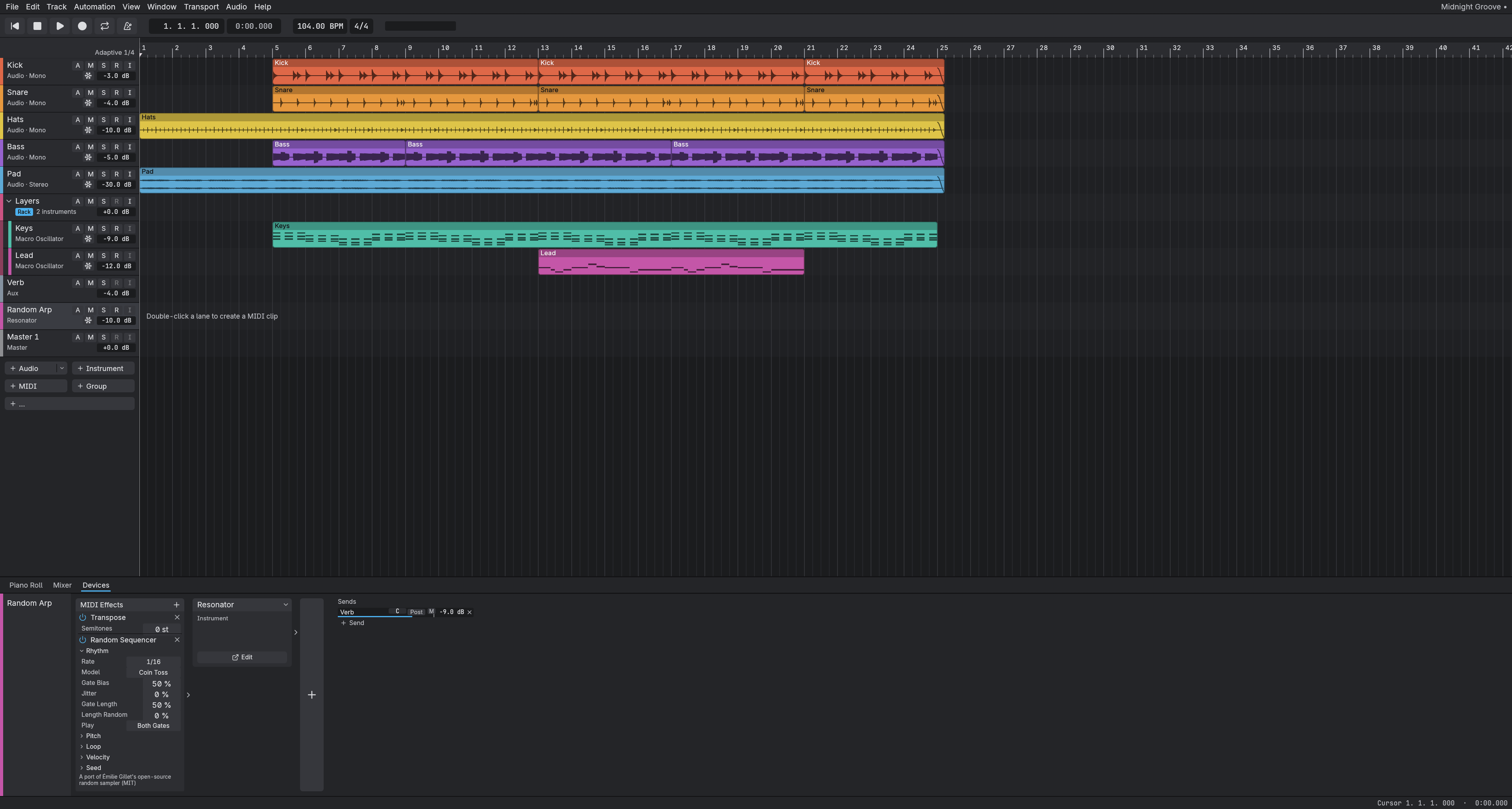
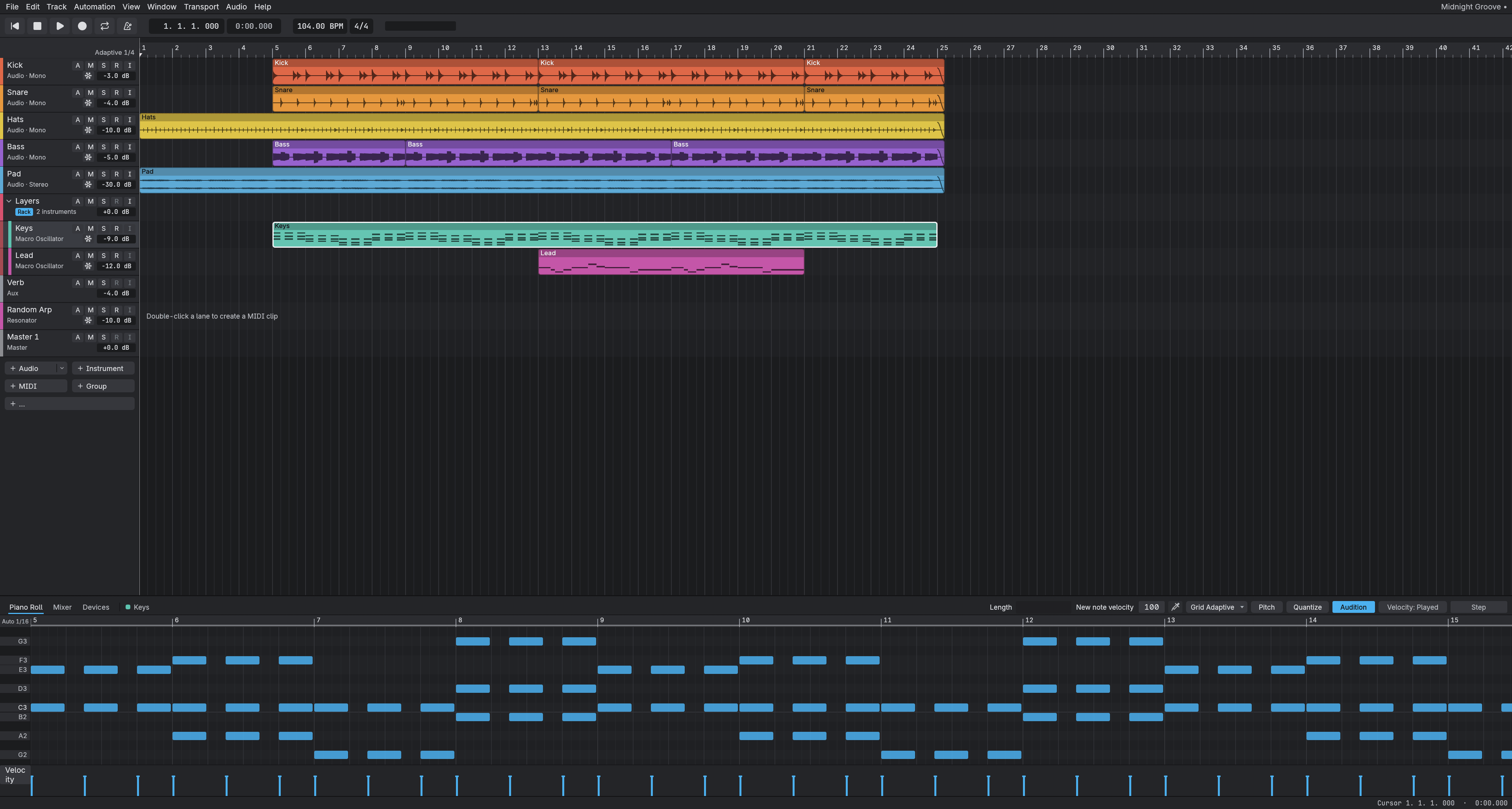
- Piano roll with several clips open at once (select them, double-click one), each in its color, edited together in one undo step (#329 slice 1).
- Piano roll with a velocity lane, and step entry: play notes on your keyboard to enter them at the cursor. Keys you play live are accented on the piano roll's keyboard. It shares the adaptive grid (Ctrl+1-4), with step-cursor keys and a fixed-velocity setting. Tap Tie/Rest (the sustain pedal by default, or Tab/Enter) while holding keys to lengthen the notes, or with nothing held to enter a rest; a preference turns hold-to-lengthen off so lengths come only from taps.
- Quantize in the piano roll: a Quantize button opens grid, strength and swing controls plus a note-end option, with an outlined preview before you apply. Apply is one undo step, and Ctrl+U reuses the saved settings.
- Scale mode in the piano roll: pick a key and scale to highlight it, fold the view to the scale (accidentals stay inline), and edit by scale degree; a chord with an accidental keeps its shape when moved by a degree. Live input is never snapped. The key and scale list is Ableton's (major, minor, the modes, pentatonics, blues, harmonic and melodic minor and more) in a Root grid and a scrollable list.
- Controller lanes in the piano roll: edit CC lanes and sustain-pedal regions; a take that holds only the sustain pedal is kept. Each edit is one undo step.
- Note length in the piano roll: Alt-drag a note's edge to set a length shorter than the grid, Alt+Shift-drag a body to move it without snap (Alt-drag a body changes velocity), and a numeric Length field in the inspector. Shift snaps.
- Freeze, Unfreeze and Flatten a track (the snowflake on the track header); a frozen track plays its rendered audio, with its key sources running.
- Group tracks: Track > New Group Track or the "+ Group" quick-add; Ctrl+G folds the selected tracks into a group, Ctrl+Shift+G ungroups, and you can drag track headers into a folder. Edit Group… is the separate edit-group feature.
- Clip fades: the whole top corner of a clip is the fade zone, and fades are drawn as visible dimmed areas with their curve. Drag a fade to set its length, drag the curve to bend it, and drag a fade across the junction into an overlapping clip to crossfade. Fade In, Fade Out and Crossfade lengths and curves are in the clip inspector; Alt+[ and Alt+] fade to the cursor.
- Clip tools: Join or Consolidate (Ctrl+J), Crop (Ctrl+Shift+J), Trim Start and Trim End to the cursor (
[and]), Nudge by grid with Alt+arrows (Alt+Shift for fine), and Rename and Color in the clip menu. - Clip-internal loops: drag the loop handle at a clip header's upper right to repeat the clip in cycles (dividers show each cycle; Alt-drag makes independent copies, Ctrl/Cmd-drag overwrites the clips in the way). Edits inside the loop apply to every cycle.
Mixer and routing
- Per-track device chains: drag a device to reorder the chain; Alt-drag copies it.
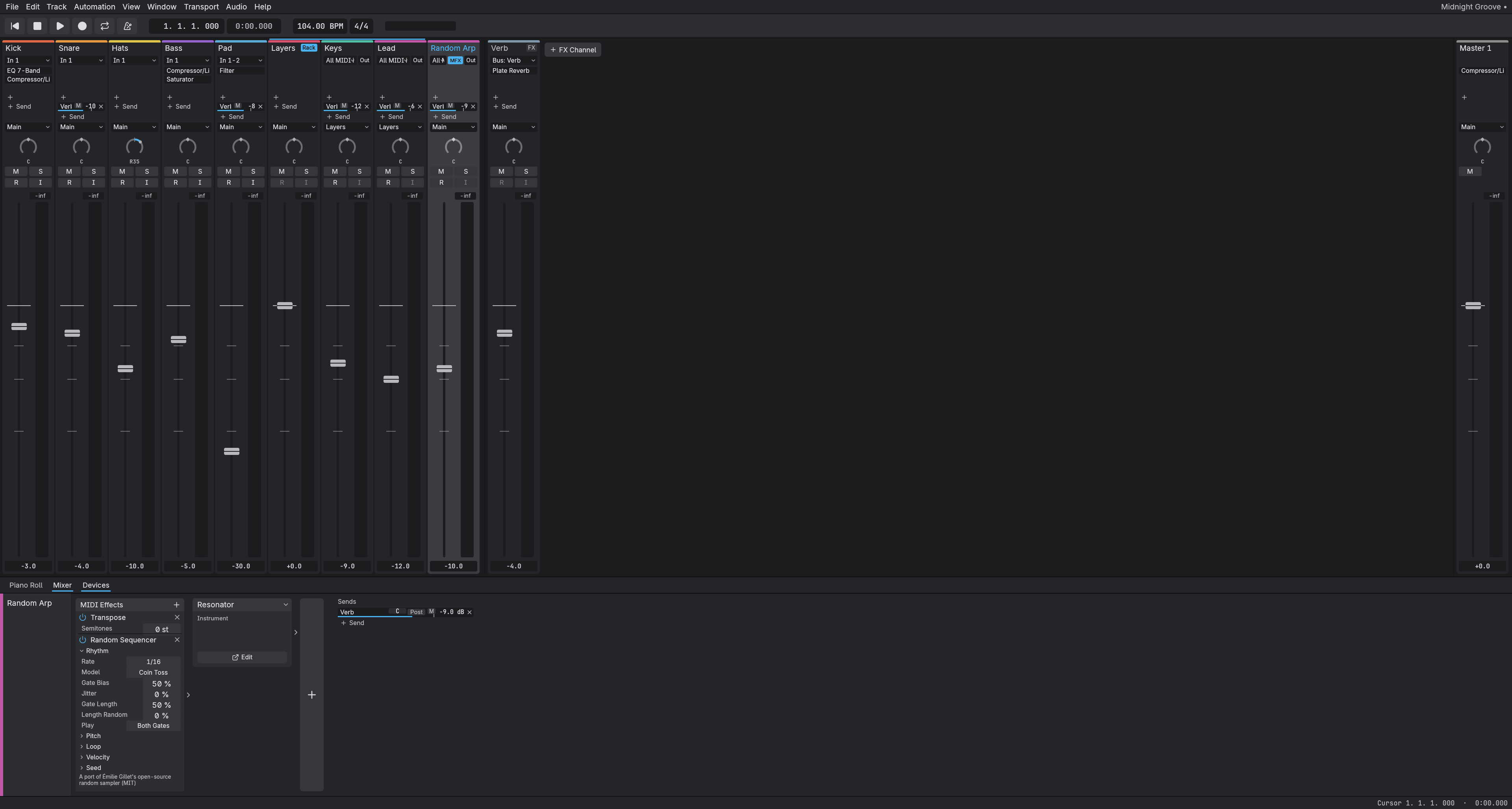
- Mixer strips in the design language: fixed sections, so faders line up across strips; one dB taper shared by the fader, its scale and a stereo meter with clip cells; insert slots with a power glyph for on and bypassed; faders top out at +6 dB. The docked mixer shows a short strip, with count buttons that open the inserts and sends.
- Main bus monitoring: Mono, Dim (-20 dB) and Ref (a stored reference listening level, Alt+click to store) on the main bus strip, acting only on what you hear, never on a bounce; a live integrated loudness readout (LUFS, BS.1770-4) under the main bus, reset with a click or a transport start.
- Buses and sends, with a warning for routes that point nowhere and a refusal for routing loops.
- Sidechain any compressor or gate from any track or bus, pre- or post-fader, latency-aligned.
- Hosted plug-ins can take a sidechain key too.
- Plug-in delay compensation keeps every path time-aligned.
- Mixer strips render on several cores with a bounded deadline, so one heavy plug-in no longer stretches the whole audio callback; sidechained sessions render on the workers too, through a dependency graph that starts a keyed strip once its key is ready (
TRANSIT_RENDER_POOL=0turns the workers off). - Opens every output on your interface; name your own paths and route tracks, buses and sends to any of them.
- Hardware inserts: send a track through outboard gear on your interface. Choose "Hardware Insert..." in the device chain's "+" menu, then pick a send path and a return path (a pair) on the insert. Audio Devices > I/O > Hardware inserts has a Measure button that plays a click train and records the round trip, which delay compensation then uses so the track stays aligned. Measure runs in the background with a progress count (n/8 clicks) and a Cancel button, so the UI stays responsive. Transport starts (Play, Record, Space) are refused while a measurement runs, and re-opening the audio device cancels it at once. The insert shows Ready, Unmeasured, No input, Missing send, Missing return or Disabled, with the reason. A route to a path an insert sends on is refused.
Instruments and effects
- Hosts CLAP and VST3 plug-ins, with their own editor windows, saved state, and reported latency.
- The plug-in window header has a preset dropdown (Save, Save As…, Load…, previous/next), Bypass and a menu (Reset, Copy/Paste state, Delete, Show in chain). User presets are
.vstpresetfiles other hosts can read. - Plug-in editors scale with the display: VST3 and CLAP editors receive the window's content scale, rescale when dragged between monitors with different scaling, and CLAP editors are sharp embedded and floating.
- The device card shows Loading while a heavy plug-in instantiates.
- Plug-ins load on a host thread, so a slow or stuck plug-in no longer freezes the UI: its slot reads "Loading…" while it instantiates and "Not responding" if it stops answering. A slow load shows how long it has taken, the phase it is in and how long it took last time; the status line reports loads and editor opens over 2 s.
- Plug-in browser with a background scan and your own search folders.
- Built-in instruments: Macro Oscillator (the default for a new instrument track), Resonator, Texture Synth, Modal Voice, Sampler. All built-ins open an editor window: parameter rows, Sampler load or drop (a file dropped on a pad becomes its sample, never an arrangement clip).
- Resonator: a physical-modeling resonator ported from Émilie Gillet's firmware (MIT) and checked bit for bit against it: six models (modal, sympathetic strings, inharmonic string, FM voice, chord strings, string and reverb) played from MIDI, each note striking the next of up to four ringing voices, at the module's own 48 kHz (converted at the edge at other session rates, latency compensated), with the Macro Oscillator's shaper and matrix; presets Struck Bell, Sympathetic Harp, Steel Pluck, FM Mallet, Strummed Chords and Ambient Pluck.
- Texture Synth: the synth of Émilie Gillet's texture synthesizer firmware (MIT), checked bit for bit against it, played from MIDI as the Texture insert's instrument form: a wavetable oscillator and clouds of wavetable grains pitched by the notes, the notes holding the module's seed gate (a steady or random stream of grains while a key is held, or one grain per note), freeze that holds the cloud and saves it with the session, four quality resolutions, at the module's 48 kHz (converted at the edge, latency compensated), with the Macro Oscillator's shaper and matrix; presets Grain Pad, Grain Pulse, Frozen Cloud and Tape Keys.
- Modal Voice: a gated exciter-and-resonator voice ported from Émilie Gillet's modal synthesizer firmware (MIT) and checked bit for bit against it: a bow, a blow and a strike (samples, mallet, plectrum or particles) under an envelope, into a modal bank, a string or five chord strings (or the module's hidden FM voice), with its space reverb; played mono from MIDI with a real gate (the pedal holds it), velocity as the module's strength input, at the module's own 32 kHz converted at the edge (latency compensated), with the Macro Oscillator's shaper and matrix; presets Bowed Glass, Breath Pipe, Struck Bar, Temple Bell, Plucked Wire and Noise Pad.
- The Macro Oscillator's optional per-voice shaper (amp and filter envelopes, a multimode filter, two LFOs with tempo sync) and a 16-row modulation matrix with via sources and curves (aftertouch, poly aftertouch, the envelopes, the LFOs, rack macros and more), transit's own addition, off by default.
- Work toward more built-in instruments, under ADR 0033: a dev-only test oracle wraps Émilie Gillet's original C++ DSP (MIT licensed), and a Rust port of all 24 synthesis engines nulls against it bit for bit. The first of them, the Macro Oscillator (Plaits), is the built-in instrument and the default for a new instrument track.
- Built-in panels with knobs, factory and user presets, and a scope and a gain-reduction display on the dynamics panels. Moving a plug-in knob while a lane is armed (Write, Latch, Touch) records into it.
- A device design language (ADR 0045, the spec): graphite panels, blue for a value you set, amber for what modulates it, with its tokens, controls and window chrome in code. Dark only for now. The Macro Oscillator and the mixer strip are the first surfaces in it; the other panels follow.
- Macro Oscillator editor, rebuilt in that language: a floating window sized to its content with no resize handle, a title bar with the preset browser and an output meter, and a model picker with short names and a description of the model you chose. The Tone knobs and the pad's axes are relabeled per model.
- Macro Oscillator display and pad: the display draws one cycle of the current model and follows the note you hold; the Timbre/Morph pad sets both together.
- Macro Oscillator Shaper and modulation: amp envelope, filter and two LFO cards, a filter graph that shades how far the modulation can move the cutoff, and a matrix where you drag a source chip onto a knob to route it. A knob with a route shows a ring from its value to its reach.
- Time readouts show three significant digits, in milliseconds below a second and in seconds from there; type a bare number or
msfor milliseconds, or a trailingsfor seconds. - Controls: a knob drag accumulates from where it started, so stepped parameters (choices, semitones, cents) follow the pointer at any speed and the dial shows the stored value; a double or triple click resets a knob, fader or pad; Ctrl+wheel (Cmd on macOS) nudges a knob, and a plain wheel scrolls the panel instead. Escape closes the editor you last clicked in, and Window > Close All Editors closes them all. A double click on an empty part of a device's title bar folds its window to the bar and back (Ableton's device fold); Window > Collapse All Editors and Expand All Editors do every window.
- Built-in dynamics and EQ: Compressor/Limiter, Expander/Gate, EQ 7-Band, EQ 1-Band.
- Built-in effects: Room and Plate Reverb, Saturator.
- The effects inherited from the SoundCraft fork are retired in stages (ADR 0040): twelve are gone in v0.6.0 (Pitch Shifter, Drum Synth, Channel Strip, Maximizer, De-Esser, Rectifier, Lo-Fi, Time Shift, Mod Delay, Chorus, Flanger, Phaser). A session that used one opens with that slot emptied and says so.
- Filter insert: a resonant multimode filter (low, high, band, notch; 12 or 24 dB) whose envelope plays from the track's notes, paraphonically, with an LFO (free or tempo-synced), an envelope follower, key tracking and an optional amp envelope; presets Pluck, Wah and Paraphonic Brass.
- Texture insert: a granular texture processor and tape delay ported from Émilie Gillet's texture synthesizer firmware (MIT) and checked bit for bit against it: grains with random time, size, shape and pitch, freeze, seed and trigger, four buffer qualities at the module's own rates (converted at the edges at any session rate, latency compensated), a 4 to 8 second buffer and the module's automatic input gain; presets Granular Cloud, Frozen Pad and Tape Delay.
- Time Stretcher insert: the pitch shifter and time stretcher of Émilie Gillet's texture processor firmware (MIT), checked bit for bit against it: pitch two octaves either way without changing speed, a read position that scrubs a frozen recording at its own pitch, a trigger that restarts the read, window, diffusion, tone, feedback and reverb, four buffer qualities, at the module's 32 kHz converted at the edges (latency compensated); presets Octave Shimmer, Sub Doubler and Stretch Pad.
- Cross Modulator insert: a meta-modulator ported from Émilie Gillet's firmware (MIT) and checked bit for bit against it: the track combined with a sidechain key (or its own oscillator) by crossfade, cross-folding, diode or digital ring modulation, XOR, comparison or a 20-band vocoder, at the module's own 96 kHz (converted at the edges, latency compensated); presets Ring Bell, Vocoder and XOR Grit.
- Tuner insert: a chromatic tuner for any audio track or an External Instrument's return. The audio passes through untouched, with no latency; the panel shows the note with its octave, a cents meter (green within 3 cents), the frequency, a reference pitch from 415 to 466 Hz and a Hold toggle, and says "No signal" when the input is too quiet or has no clear pitch. The pitch is read on the UI thread, so the device costs the audio callback nothing.
- Utilities: Gain, Trim, Invert, DC Offset Removal, Signal Generator, Dither.
- Random Sequencer MIDI effect: a random sampler ported from Émilie Gillet's firmware (MIT) and checked bit for bit against it: random gates on the tempo grid (six models, jitter, gate lengths) playing pitches drawn through a scale (spread, bias, steps), velocities from a fourth random channel, deja vu loops of 1 to 16 steps with Freeze, and a latched seed that replays a passage; presets Drifting Melody, Locked Loop and Sparse Random Bass.
MIDI
- Play hosted instruments live from a USB controller; on Windows it uses the native WinMM driver.
- Window > MIDI Monitor: every message from every input port (routed or not) and every message sent to an output port, with filters by direction, device, channel and type, text search, a per-port Clock BPM and message-rate readout, Learn (see what a control sends) SysEx bytes in the rows, a transport-position Time column while playing, and a bug-report copy. A "MIDI" light at the right of the transport bar blinks on input.
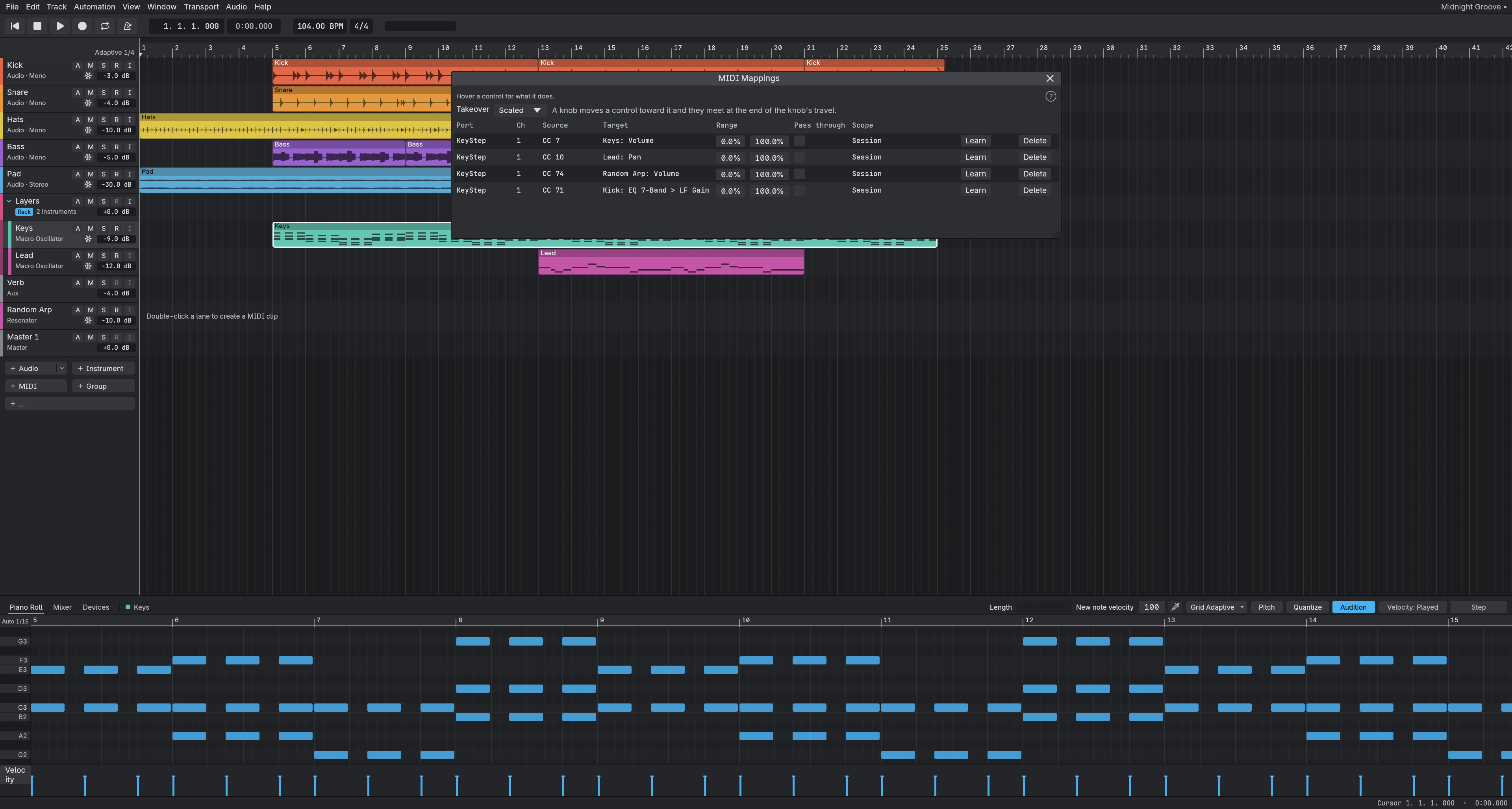
- MIDI Learn: right-click a fader, pan knob, mute, solo, record arm or send level, choose MIDI Learn and move a knob or press a key on any open controller. Knobs pick the control up as they cross its value (or jump, per mapping) over a range you set; notes and buttons toggle. Mappings live in the session or in a per-machine controller profile (the session wins a conflict); mapped controls carry a small marker and Window > MIDI Mappings lists, edits, re-learns and deletes them. A mapped sweep is one undo step. Plug-in parameters map the same way, built-in or hosted: right-click a knob in a built-in plug-in's editor, or use the hosted editor header's MIDI Learn: next touched parameter and move the control in the plug-in; the knob spans the parameter's own range, a hosted VST3 parameter follows the plug-in's own curve, and in Write, Latch or Touch a mapped move is recorded as automation, in Read it is applied but not written.
- MIDI Learn takeover: a mapped knob that is not where its control is takes over scaled by default (the control moves proportionally until they meet); a per-machine setting, in the mappings window or a mapped control's menu, switches to jump (straight to the knob) or pickup (wait until the knob reaches the control).
- Input without usable timestamps is still played, with approximate timing, rather than dropped.
- External MIDI output per MIDI track: the mixer strip's Out button picks Instrument or a hardware MIDI port, a channel and a millisecond offset. Notes and controllers follow the playback clock (clip loops included), live input echoes while armed or monitoring, and All Notes Off is sent on stop, loop wrap, disarm, unplug and exit.
- MIDI feedback protection: live input is not echoed back to the device it came from (a controller with MIDI thru would loop) unless the Out menu's "Allow echo to this device" is on, channel-mode messages are never echoed, and an input port caught in a feedback loop is muted (recording from it stops too) until you re-enable it from the track's MIDI input menu or the External Instrument card.
- External Instrument: choose "External Instrument" in an instrument track's instrument menu to play a hardware synth. Its MIDI goes to the port on the Out button, its audio comes back on an input you pick on the card, with a gain and a latency in ms that delay compensation uses to put the synth on the grid. A bounce asks before leaving it out (it can only be heard in real time). External MIDI on any track now follows delay compensation.
- External Instrument Measure: the card's Measure button plays a warm-up note and 8 notes to the synth and times their sound on the return, then keeps the median for that MIDI port, input, sample rate and buffer size on this machine (a value typed by hand still wins). Cancel, a refusal or a lost device always ends the note.
- Real-time render with hardware synths: Bounce can play a mix with an External Instrument through your audio interface in real time, so the file is what you hear, with the synth on the grid and, if you like, its return as a separate stem. Cancel stops the synth cleanly and writes nothing; "Render without hardware" stays as the faster offline choice.
- MIDI recording: arm an instrument track and record, with a count-in. Overdub merges into the clip under the pass. With Cycle on, Record loops the range and keeps going until Stop, each lap a stacked take (audio too; there is no separate Loop Record option); stopping mid-lap keeps the partial lap, and the status line reports the take count. Held notes are cut at the loop end and resume at the start of the next lap.
- Take lanes: a track's stacked takes show as lanes under it (the T button on the track header, and after cycle recording), newest on top. Click a take to play it over its range, or its label to play it everywhere; Flatten Takes keeps what plays and Delete Take removes a take that does not play, each one undo step.
- A MIDI take journal is written during the pass and kept until an autosave that holds the recording lands; after a crash, the next launch recovers it as a
<Track>_recoveredclip. Record works without a validated device clock: alignment is approximate, a take recorded that way says so, and when recording cannot start you get a plain-English reason. - A hosted plug-in that re-sends an unchanged parameter value no longer registers an automation touch; only a real change does.
- Update check: once a day, one anonymous request to GitHub; turn it off in the Help menu or with
TRANSIT_NO_UPDATE_CHECK=1. - The window and taskbar show the transit icon and identity.
Audio devices
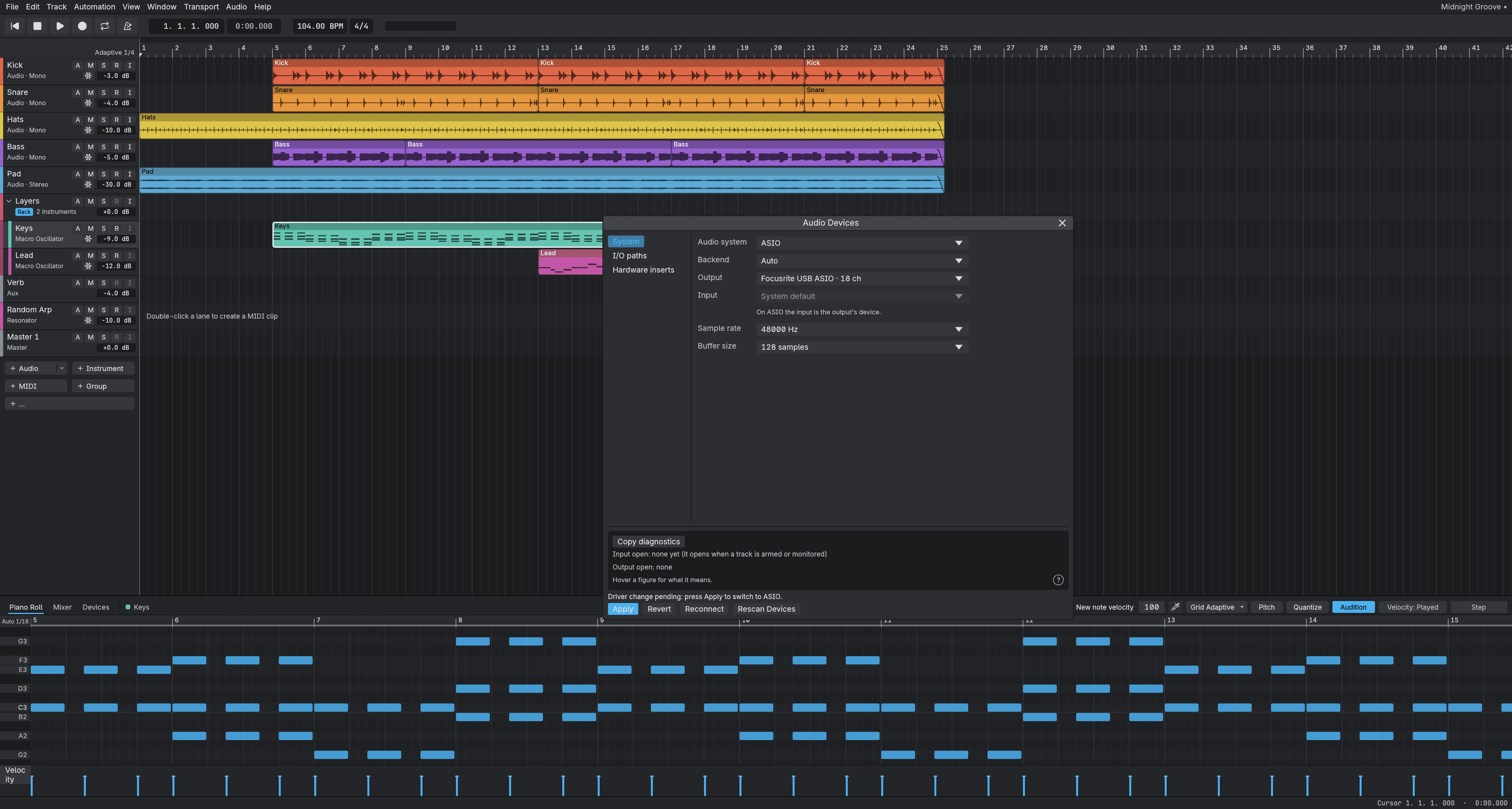
- Audio Devices window to pick the driver (WASAPI, or ASIO (the native ASIO backend)), device and buffer size.
- Audio Devices has a sidebar of sections (System, I/O paths, Hardware inserts) so every option fits a laptop screen. Changing the driver, backend, device, rate or buffer size is pending until you press Apply: the window says what will change, highlights Apply, and Revert (or Esc) puts the running choices back.
- Native JACK: the buffer size chosen in Audio Devices is asked of the server when transit connects (64 to 2048 frames; Linux packages arrive with the next release).
- Copy diagnostics (Audio Devices and Callback Telemetry) and
transit --reportwrite a text report of your system, devices and the end of the log, with your user name and paths redacted, to attach to a bug report. - Named input and output paths, saved per machine.
- Native WASAPI backend: on Windows the WASAPI system always opens through it, with no Backend choice; a device that does not open says why and stays closed. It plays, captures (filling any lost packets with zeros, so a take keeps its length) and runs duplex: an input is paired with its output by device, chosen with the Paired input selector. It opens the device shared by default; a "Take exclusive control of the device" checkbox opens it exclusive instead (other apps are silenced while transit runs), and an exclusive open that fails steps down to shared, with a message, rather than failing silently.
audio-bench --backend wasapimeasures it. Verified on a Scarlett 2i2 in shared and exclusive mode (a Model 12 run is pending). On Windows, native WASAPI gives any interface a dependable, calibrated stereo path with no SDK and no extra driver install. How many channels it sees is decided by the vendor's WDM driver: the TASCAM Model 12 registers one stereo playback and one stereo recording endpoint, so WASAPI shows 2 in and 2 out on it in every mode, and individual channels cannot be recorded over WASAPI. Multichannel and tracking-grade latency on Windows are the ASIO path (a native ASIO backend is in progress). - Native ASIO backend (on by default; no Steinberg SDK and no LLVM): choose Audio system ASIO. It lists every installed driver and says which failed to load, opens every channel of the interface (all 12 inputs and 10 outputs of the TASCAM Model 12, named as the driver names them), plays, records and runs hardware inserts duplex, shows the buffer, sample format and latency the driver reports, and opens the driver's own settings (Driver settings). About 6 ms round trip on the Scarlett 2i2 at 64 samples.
- Loopback calibration:
audio-bench --backend wasapi --loopback --settingsmeasures the interface's round trip and saves it, and the timing label then reads "calibrated". Over native ASIO the Calibration line in Audio Devices has a Measure button: a click through a cable from an output to an input times the loop at the current buffer size and rate, recordings are placed from it, and the driver's own latency figures are shown beside it (until then they are used; on the Scarlett 2i2 at 48 kHz they are within about 5 frames of the measured loop). Shared mode is not a low-latency path (about 248 ms round trip on the Scarlett 2i2); exclusive mode measured about 223 ms there (and about 276 ms, often silent, on a Model 12), and ASIO about 23 ms, so ASIO remains the tracking path on that interface. audio-bench --midi-roundtripmeasures MIDI-to-audio onset latency; the benchmarks page lists results for several interfaces.- Tracks, buses and sends route to any output path, with latency aligned across them.
- Native ASIO recovers from a driver reset request (the driver changing its buffer size or sample rate) and reopens the device, and its audio thread runs at MMCSS Pro Audio priority.
- The Calibration Measure button works per driver, sample rate and buffer size, and keeps a result for each combination.
- Linux: native JACK/PipeWire backend (build with
--features native-jack;pw-jack transitunder PipeWire). It plays and records duplex in one server cycle at the server's rate and buffer size, counts the server's xruns, and reopens by itself when the server changes its buffer size or rate or comes back after stopping. - Linux packages: an
.AppImage, a.deband an.rpmcome with the tarball. - Audio Devices shows "Requested 128 · running at 256" when the device runs a different buffer size or rate than you asked for.
- System Audio input: record what the computer plays (a browser video, another app) on an audio track, with no cable. On Windows a WASAPI loopback capture of the output you choose, at its own rate and clock, with its latency and drift shown in Audio Devices; on Linux an output's PipeWire or PulseAudio monitor is named as System Audio.
Sessions and rendering
- Bounce the main mix or any bus over the selection or loop range to WAV, AIFF or FLAC at 16-bit, 24-bit or 32-bit float.
- Opus export for sharing: mix, stems and clips as
.opusat 96 to 256 kb/s (160 by default), encoded by the reference libopus. No MP3, on purpose: Opus sounds better at every bitrate and its license is BSD. - Stems by output path from the Bounce dialog.
- Bounce in Place turns a track's clips into audio.
- Full undo history; every edit is a command.
- Autosave, and sessions saved as versioned, human-readable JSON in
.transitfiles. - A launch splash that reports the audio device opening first, then plug-in scan progress, and Help > About with version info and a link to the transit repository.
- Import audio and MIDI files; export MIDI. File > Open Session also opens a DAWproject (
.dawproject, from Bitwig, Studio One, Cubase and others) as a new session: its tracks, note clips, tempo and meter, markers and MIDI expression (the first slice of #261). File > Open Recent lists your last ten sessions (Ctrl+Shift+O). - Browser preview: select a supported audio file in the Files tab and press play to hear it before you drag it in. A headphone toggle auto-previews each selection, and the preview has its own volume on a path that never records, meters or routes to a track. It stops on another file, on transport start or on Escape; every importer format works, including RF64.
Under the hood
- An audio backend trait sits between the Player and the audio system, with cpal behind it as the first adapter.
- One renderer: playback and offline render both use the plan renderer; the legacy renderer is gone.
- Offline render and playback are checked against each other by golden tests.
- Every edit is a named command, which is what makes undo and the command catalog uniform.
- App-wide polish: Lucide icons for every glyph (credited in ATTRIBUTION.md), option toggles in place of blue selectable labels, dropdown lists that open with a gap and a check beside the current value, user presets saved from the preset list, and Escape closing popups.
- Assistant access (the control server and MCP tools) addresses positions as bar|beat and can add chords.
- In-app help: Shift+? opens an Info panel that explains the control under the mouse. The diagnostics windows have question-mark markers, and the Callback Telemetry and Audio Devices figures are explained in the same help catalog the troubleshooting guide draws on.
Status
Alpha. The product is now called transit, and its settings folder moved from transitDAW to transit (your settings are moved once on first launch). Windows is tested daily and needs Windows 10 version 1607 or later; macOS and Linux build but are untested (their packaging ids are dev.derekmwright.transit). The packaging scripts under packaging/ build the transit app on every platform (docs/building.md). The Windows release is one download (zip and MSI) with native WASAPI and native ASIO.
Expect rough edges and breaking changes to the session format. Back up anything you care about.
Build
You need a Rust toolchain at 1.90 or newer (rust-version in Cargo.toml). On Linux, install
libasound2-dev and pkg-config first.
Every pull request and push to main is checked with clippy, tests and the layer rules on Windows,
Linux and macOS, plus the ASIO and native WASAPI features. Hardware tests are
never CI gates.
cargo build -p transit --release
The binary is target/release/transit (transit.exe on Windows). On Windows this plain build includes Native WASAPI and Native ASIO (default features; they do nothing on Linux and macOS). --no-default-features leaves them, and the update check, out.
ASIO on Windows
The native ASIO backend (crates/audio-asio) is part of the default Windows build and needs nothing
beyond the Windows prerequisites: no SDK, LLVM or environment variables. Choose Audio system ASIO,
then Backend "Native ASIO" in Audio Devices. Details and the hardware tests:
docs/building.md.
Run
cargo run -p transit --release            # empty session
cargo run -p transit --release -- --demo  # built-in demo song
transit --version
Settings, autosaves and logs live in a per-user folder: %APPDATA%\transit on Windows,
~/Library/Application Support/transit on macOS, $XDG_CONFIG_HOME/transit (or
~/.config/transit) elsewhere. Set TRANSIT_CONFIG_DIR to use another folder. An empty value
disables saving settings.
Render settings are read once at startup; restart transit after changing them.
| Environment variable | Behavior |
|---|---|
TRANSIT_RENDER_POOL |
Unset or 1: render workers on; 0: render strips serially on the audio thread. |
TRANSIT_RENDER_GRAPH |
Unset or 1: keyed strips use the task graph; 0: keyed plans render serially and the tail graph is disabled. |
TRANSIT_RENDER_TAIL |
1: opt into the aux and bus tail graph; unset or 0: keep the serial tail until the paired measurement. The graph opt-out wins. Eligibility counts live auxes toward the four-strip threshold; only an away tail strip forces the tail recovery path. See the render-worker guide. |
transit --control <port> (or TRANSIT_CONTROL_PORT; 0 picks a free port) starts a JSON-lines control server for scripts and the MCP server. It binds to 127.0.0.1 only. At start it writes a random per-run token to control-token in the settings folder (override the path with TRANSIT_CONTROL_TOKEN_FILE) and logs the path; each connection must send auth <token> as its first line or it is closed. transit-cli mcp --connect <port> reads the file itself. The MCP tools are list_commands, execute, batch, inspect_session, new_session, open_session, save_session, import_audio, bounce_mix, and, with the app, screenshot, ui_inspect, ui_set, click, drag and key. See docs/control-protocol.md and docs/mcp.md.
Status and known issues
- Alpha; the session format and UI change freely.
- A heavy plug-in can still block the UI for the duration of its single create call.
- Approximate record alignment on devices whose clock never validates can differ by up to one input block (K14); Freeze renders a fixed 2 second tail.
- The Windows release is one download (zip and MSI) with native WASAPI and native ASIO. It is unsigned: SmartScreen shows "More info", then "Run anyway".
What comes next, by milestone: docs/roadmap.md.
Lineage
transit began in October 2026 as a fork of SoundCraft by
storytold, an open-source Rust digital audio workstation. transit has its own audio engine (native
WASAPI and native ASIO backends) and its own product direction; the plug-in hosts and a number of
crates were inherited (renamed from soundcraft-* to transit-* in #37).
License
MIT OR Apache-2.0, at your option: see LICENSE-MIT, LICENSE-APACHE and NOTICE.
Contributing
Issues are welcome; see CONTRIBUTING.md. Background on past decisions is in the ADR index.
For contributors and their agents
- AGENTS.md: read this first.
- Every crate is
transit-*; the inherited ones were renamed fromsoundcraft-*in #37 (ADR 0014). - docs/adr/: architecture decisions.
- docs/contributing/: evidence and knowledge notes.
- docs/known-issues/: accepted, tracked limitations.
ASIO is a trademark of Steinberg Media Technologies GmbH, registered in Europe and other countries.
Ähnliche Projekte entdecken
ytdl-org/youtube-dl
Kommandozeilenprogramm zum Herunterladen von Videos von YouTube.com und anderen Videoseiten
141,539 Sterneexcalidraw/excalidraw
Virtuelles Whiteboard zum Skizzieren von Diagrammen im handgezeichneten Stil
135,492 Sternegodotengine/godot
Godot Engine – Plattformübergreifende 2D- und 3D-Spiele-Engine
120,003 Sternemrdoob/three.js
JavaScript-3D-Bibliothek.
118,122 Sterne